Exporting to .docx
How to make a Word file of your manuscript in Standard Manuscript Format, with a title page from your author profile, and make it again for each new draft.
Plan: Writer and Studio (free during the beta). See Plans and billing.
Make a Word file
- On your project’s home page, select the Settings tab.
- Under Backups & export, select Export beside Export manuscript.
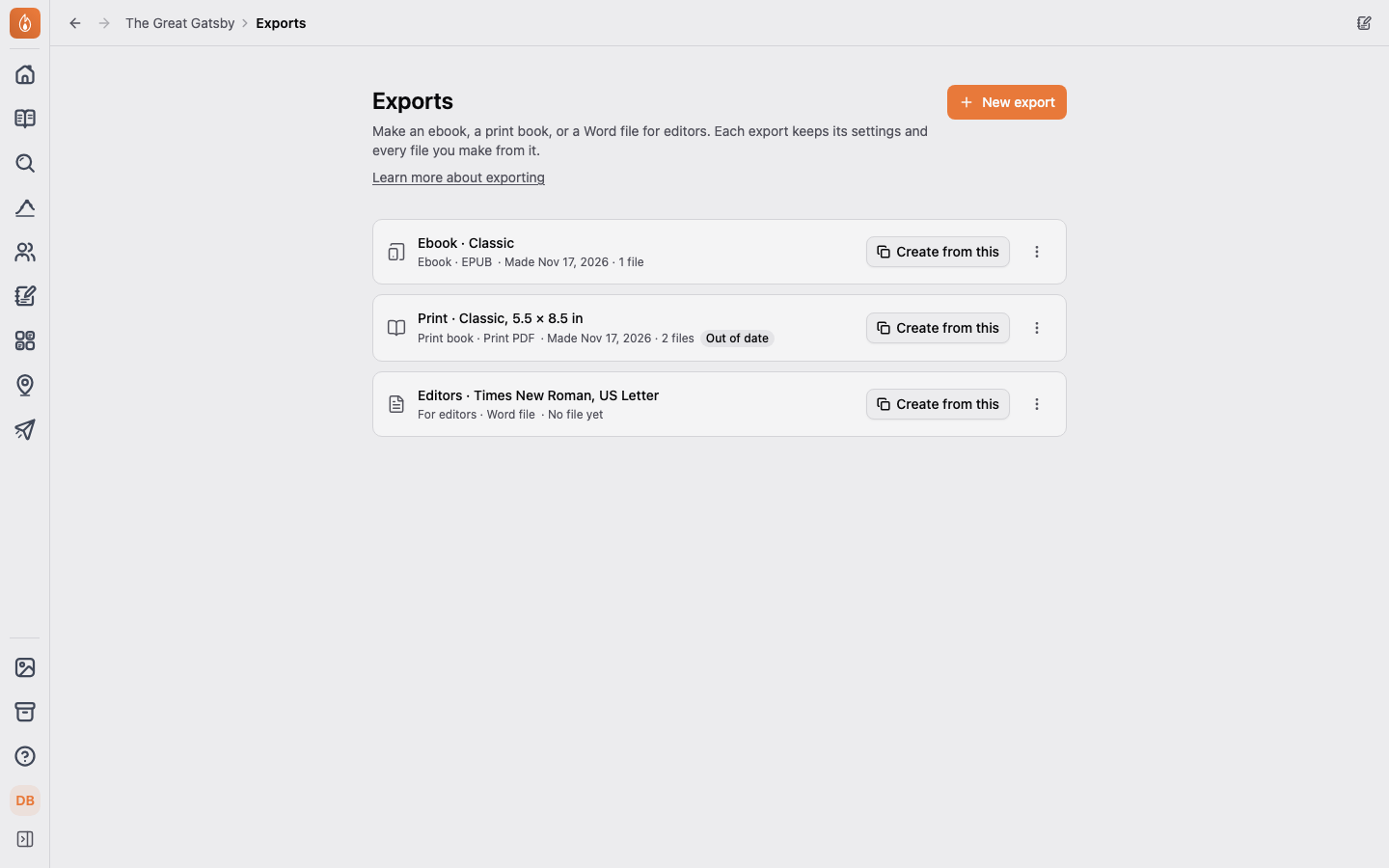
- Select New export. With no exports yet, skip this step.
- Choose For editors.
- In a series, choose the book.
- Select Create export.
- Pick your options. They save as you change them.
- Select Make Word file.
Choose your options
- What to export: in a series, one book or several, in the order you choose.
- Font: Times New Roman (the default), Courier New, or Arial.
- Page size: US Letter (the default) or A4.
- Title page: on by default. It shows your name and contact details from your author profile. It also shows the word count, rounded up to the nearest 1,000.
- Embedded images: off by default. Turn it on to include your manuscript’s images in the file.
- Jots as comments: off by default. Each jot, a note you left in your text, becomes a Word comment at its spot. With it off, the file has no jots.
- Show on title page: Email address is on by default. Phone number and Mailing address are off.
What’s in the file
The file holds your manuscript in the order of your Manuscripts panel. Each chapter starts on a new page. Parts don’t print, so a part’s chapters follow on from the one before.
Bold, italics, headings, and lists come through. Passages, like an epigraph or a letter, come through as plain indented blocks.
Open suggested edits stay out of the file: it has the text as it was before them.
The layout is Standard Manuscript Format, what agents and editors expect:
- Double-spaced, 12pt text
- One-inch margins
- Indented paragraphs
- A running header with your surname, the title, and the page number, on every page but the first
What happens next
The file downloads. Every file you make is kept under Files on the export, newest first, and counts toward your storage. Select Download to get one again.
The newest file is marked “Out of date” once you change an option after making it. For the next draft, open the export from the Exports page and select Make Word file again.
If something goes wrong
The Exports page says “Exports need a connection”
Exports aren’t available offline. Every file is built on the server. Reconnect, and your options are still saved.
The file downloaded but isn’t under Files
The note under the button says “Downloaded, but there was no room to keep it: your storage is full.” Free up space in your asset library, then make the file again.
Related
Was this helpful?
Thanks for letting us know.