Marking epigraphs, verse, letters, and text messages
How to mark text as a blockquote, epigraph, verse, letter, or text message Passage, switch or remove it, and how each kind looks when you format or export your book.
Mark text as a Passage
A Passage marks a stretch of text as a blockquote, an epigraph, verse, a letter, or a text message.
- Select the text.
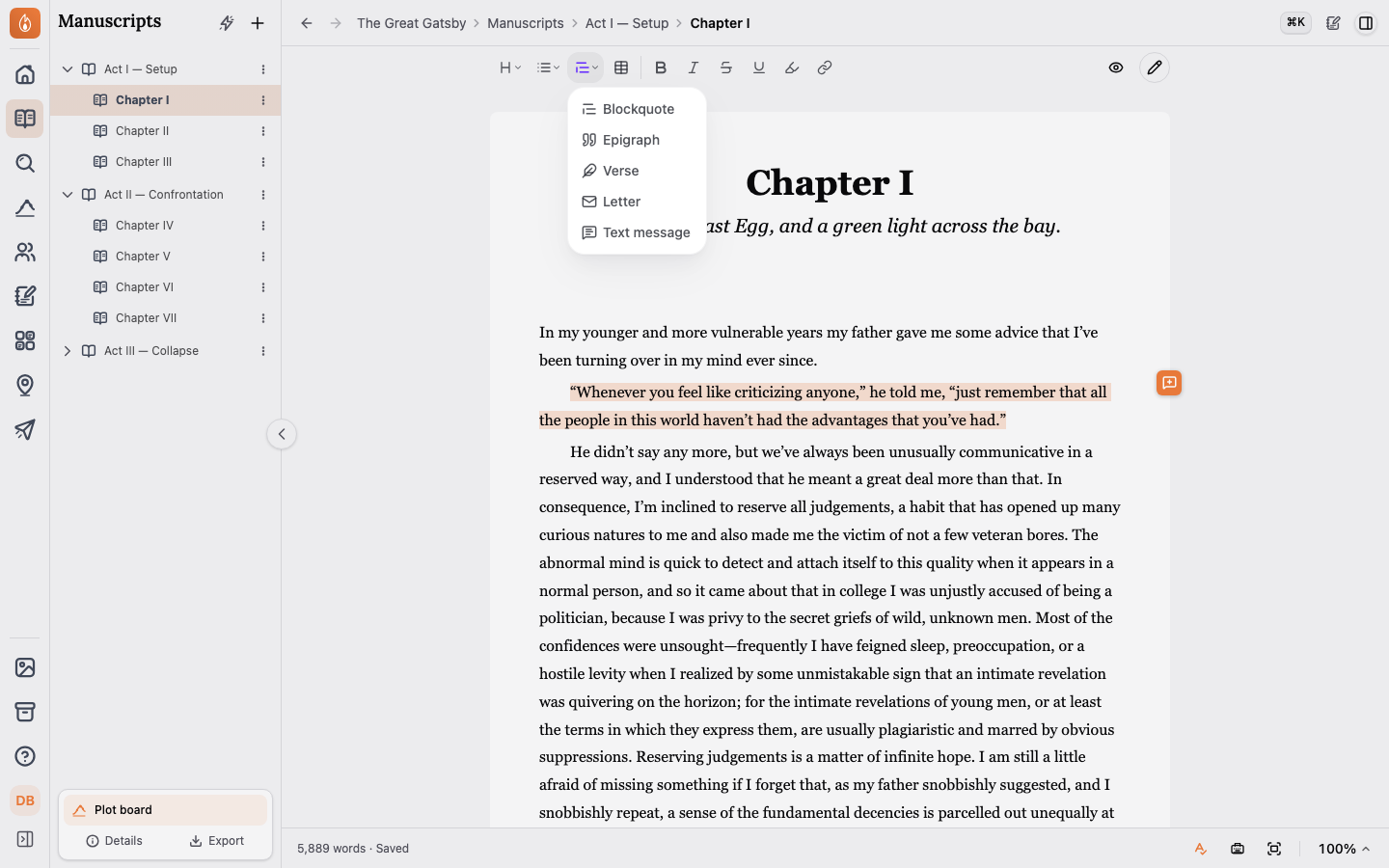
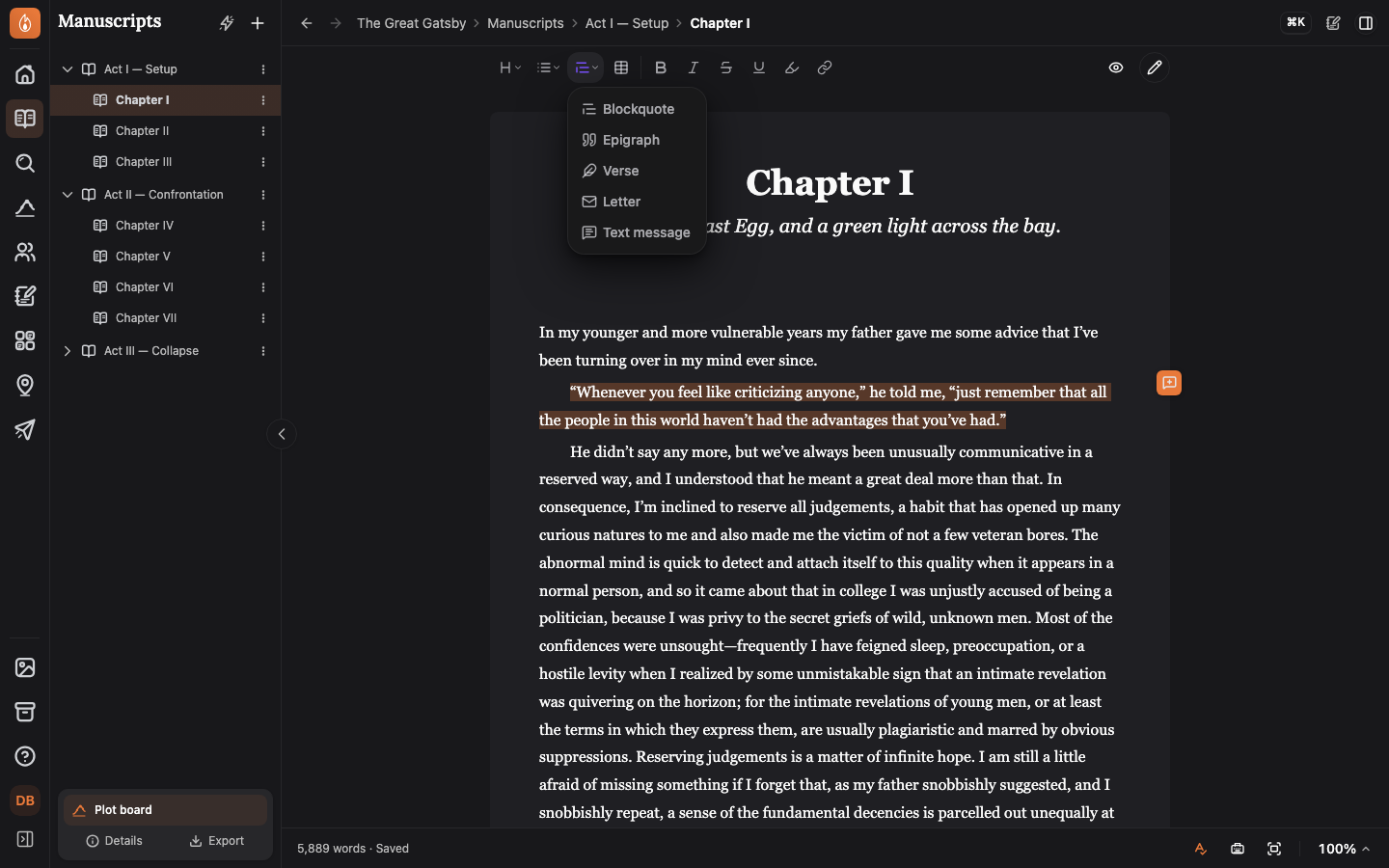
- In the toolbar above the page, open the Passage menu.
- Choose a kind.
On an empty line, you can also type /, choose a kind, and then write inside it. In the editor, a Passage is a box with its kind at the top.
Switch or remove a Passage
With the cursor in a Passage, the Passage menu shows its kind checked. Choose another kind to switch it and keep the text. Choose the same kind again to unmark the whole Passage.
Choose a kind
- Blockquote: a quotation set apart from the story.
- Epigraph: a quotation that opens a chapter or the book. Start its last line with a dash and that line is set as the source. An epigraph at the top of a chapter’s first scene prints after the chapter heading.
- Verse: a poem or song, line by line.
- Letter: a letter, note, or diary entry.
- Text message: a text conversation, one message per line. Align a message to the right to mark it as sent, and it’s drawn on the sender’s side. Messages are set in your book’s own font.
Leave a Passage as you type
Press Enter on an empty line to leave a Passage and keep writing below it.
Verse works differently. In verse, Enter starts a new line and an empty line is a stanza break. A second empty line leaves the verse.
Where Passages show up
When you format your book, each style gives every kind of Passage its own look. That holds in both the EPUB and the print PDF.
In a .docx export, Passages come through as plain indented blocks. Beta readers see them as indented blocks too.
Related
Was this helpful?
Thanks for letting us know.