Searching your manuscript, notes, characters, locations, and boards
How to find every place a word or phrase appears in your manuscript, notes, characters, locations, and boards, including chapter titles and synopses, read the results, jump to a match, and search offline.
Open Search
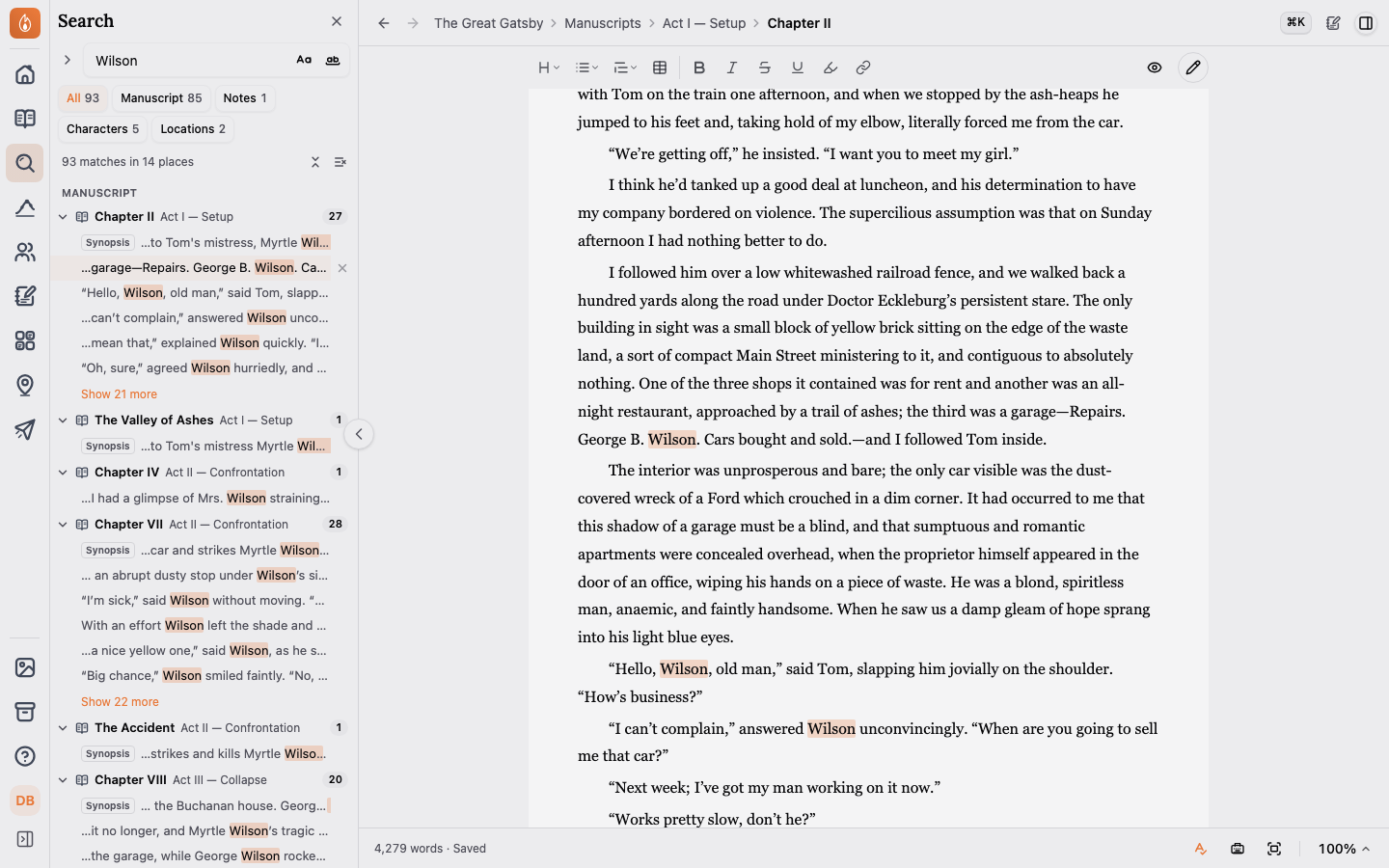
Press ⇧⌘F (Ctrl+Shift+F on Windows) from anywhere in the project. You can also select the magnifying-glass icon in the left rail, just below Manuscripts. Search opens in the sidebar in place of your manuscript tree.
To close it, select ✕ at the top of the panel. Selecting the Search icon again, or any other icon in the rail, also closes it.
Search is for the project’s owner and collaborators. Editors and beta readers reading a draft don’t have it.
Find a word or phrase
Type into the search box. Results appear once you pause typing, and new writing is found before it saves.
Search finds exactly what you type, spaces and punctuation included, except that straight and curly quotes find each other. It ignores capital letters unless you turn on Match case.
It looks through your prose and your notes. It also looks through the names, titles, subtitles, and synopses of your books, parts, chapters, and scenes, the titles and synopses of your plot beats, and the name of each note.
It looks through your characters and locations too: each one’s name and logline, and the blocks on its page, such as Backstory, the Story engine fields, aliases, and Description.
On your boards, it looks through each board’s name and the words on its canvas: sticky notes, shape labels, link titles and descriptions, section names, table column and row names, and connector names. Story cards aren’t searched there, since the character, scene, or other item they show turns up under its own kind.
Jots and anything archived aren’t searched. Neither are words someone has suggested adding, until they’re accepted.
Two buttons at the right end of the search box narrow the search:
- Whole word: finds the word only on its own, so “Tom” no longer finds “tomorrow”.
- Match case: finds only the capitals you typed, so “Rose” finds the character and not the flower.
In a series, the Book menu below the box searches one book instead of all of them. Your notes, characters, locations, and boards are searched either way.
Read the results
Results are grouped by chapter, in book order. A chapter with several scenes is listed scene by scene. The line above the list sums it up, for example “80 matches in 5 chapters”.
Each chapter’s row shows the part it’s in and how many matches it holds.
- To fold a chapter, select its row. Collapse all above the list folds every chapter.
- Each chapter lists its first 6 matches. Select Show 12 more (the number varies) under it to list the rest.
- A match in a title or synopsis is tagged “Title” or “Synopsis”.
- To hide a match you’ve dealt with, point at it and select its ✕. The chapter’s count goes down with it.
- Clear search empties the box and the list.
Matches in notes, characters, locations, and boards come after the manuscript, in that order. Each one has its own row, with the folder it’s in. A match in a character or location is tagged with where it is on the page, such as “Logline”, “Alias”, or “Backstory”. A match on a board is tagged with what holds it, such as “Sticky note”, “Shape”, or “Table”, and a board’s matches are listed top to bottom across the canvas.
When more than one kind has matches, buttons above the list show each count: All, then Manuscript, Notes, Characters, Locations, or Boards for each kind with matches. Select one to list only its matches. It stays selected for your next searches.
Up to 500 matches are listed at once, shared out across your chapters. A common word still lists every chapter that uses it, each with its full count.
Hidden matches and folded chapters reset with each new search.
Jump to a match
Select a match to open the chapter or scene it’s in. The page scrolls to the paragraph and the match lights up for a moment. The list stays open.
A match in a note opens the note at that paragraph. A match in a note’s name opens the note at the top.
A match in a chapter’s title, subtitle, or synopsis opens that chapter’s details page instead. The words are selected in their box, and the box is outlined for a moment. A match in a scene’s own synopsis opens the scene. A match in a plot beat opens the beat’s details page the same way.
A match in a character or location opens its page:
- A block, such as Backstory or Description: the block opens if it’s folded, the page scrolls to it, and the match lights up.
- A box, such as the logline or a Story engine field: the words are selected and the box is outlined for a moment.
- An alias: that alias is outlined.
- The name: the page opens at the top.
A match on a board opens the board and moves the canvas to what holds it, zoomed in far enough to read. That card, section, or table is selected and outlined for a moment, and a connector is selected. On a sticky note, the match lights up too. A match in the board’s name opens the board where you left it.
See every match on the page
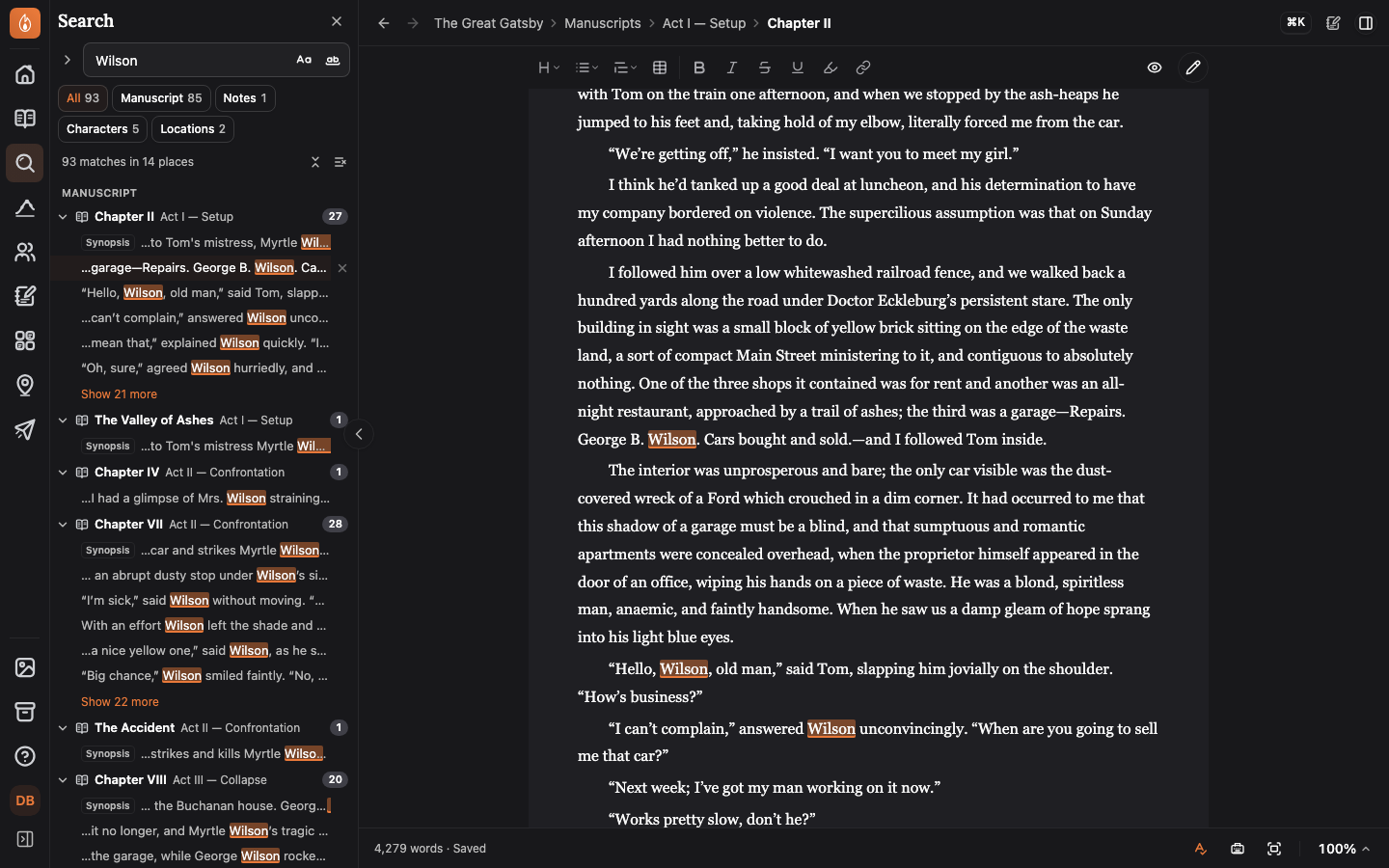
While Search is open, every match on the open page is highlighted. The highlights follow Whole word and Match case. A match you type into the scene lights up as you write it.
On a character or location page, matches are highlighted in its blocks, such as Backstory, but not in boxes such as the logline. On a board, matches aren’t highlighted.
Clear the search box or close Search to remove them.
A character you named with an @ mention is found by Search but isn’t highlighted on the page.
Search while offline
Search works without a connection. It looks through the copy of your manuscript, notes, characters, locations, and boards kept on your device.
The Studio fills that copy in the background a few seconds after a project opens. Until then, Search looks through what has arrived. It says how many it skipped, for example “3 scenes and 1 note aren’t on this device yet, so their text wasn’t searched.”
Offline, it says “aren’t available offline” instead. Open a missing scene, note, or board once while online and it’s searched from then on.
Related
Was this helpful?
Thanks for letting us know.