Format your book
How to make an EPUB or a print-ready PDF from your manuscript: start an export, choose a style, preview your book, and make the file.
Start an export
- On your project’s home page, select the Settings tab.
- Under Backups & export, select Export beside Export manuscript.
- Select New export. With no exports yet, skip this step.
- Choose Ebook for an EPUB, or Print book for a print PDF.
- In a series, choose the book.
- Select Create export.
A book’s own page also has an Exports button. It opens the Exports page with only that book’s exports.
An export is one file type for one book, so an ebook and a print book are 2 exports. The project’s owner and collaborators all see and change its exports. Every change saves as you make it.
An export has 3 steps: Choose a style, Make it yours, and Publish. Select any step to go to it. A new export opens on Choose a style, and one you’ve made a file from opens on Publish.
Choose a style
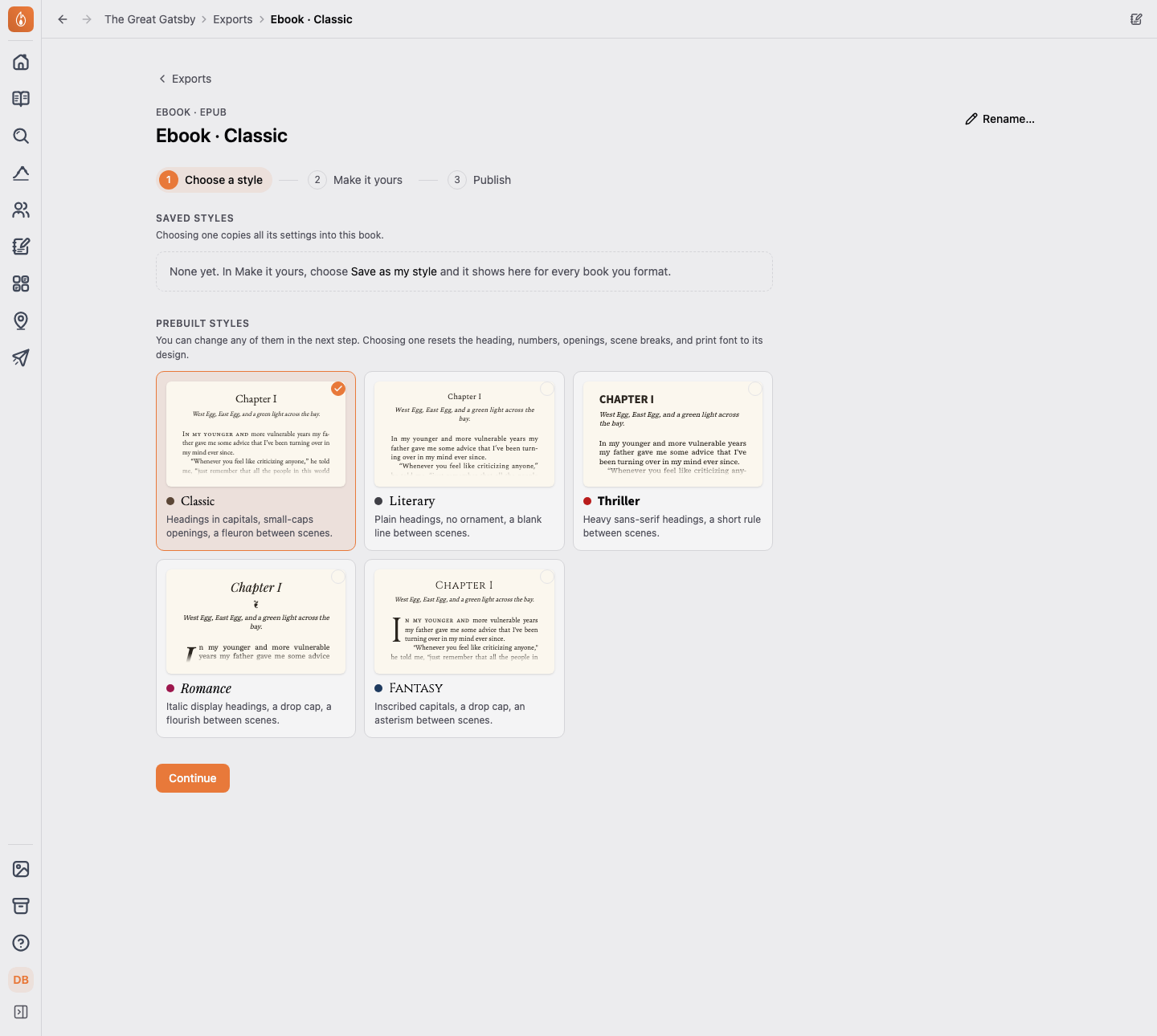
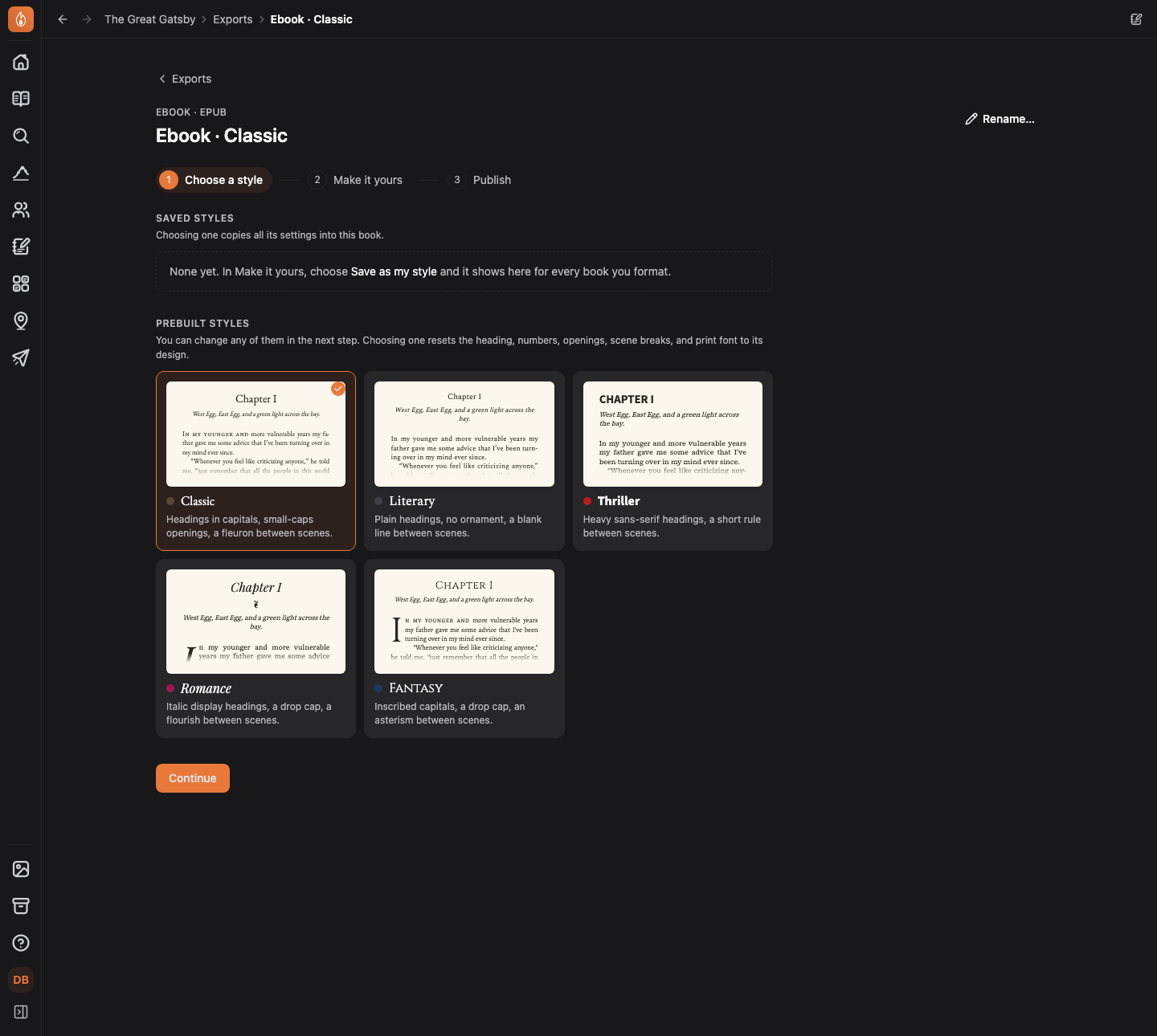
Choose a style draws your own first chapter as a printed page in each of 5 prebuilt styles. Pick one, then select Continue.
- Classic: traditional, with headings in capitals, small-caps openings, and a fleuron between scenes.
- Literary: spare, with plain headings, no ornament, and a blank line between scenes.
- Thriller: bold, with heavy sans-serif headings and a short rule between scenes.
- Romance: elegant, with italic headings, a drop cap, and a flourish between scenes.
- Fantasy: epic, with inscribed capitals, a drop cap, and an asterism between scenes.
Choosing a style resets the chapter heading, numbers, openings, scene breaks, and print font to its design. Your trim size, text size, and the pages we add stay as you set them. Styles you’ve saved show above, under Saved styles.
On Make it yours, change any part of the look: chapter headings, numbers, scene breaks, trim size, font, and the pages we add. See Changing how your book looks.
Preview your book
A preview sits beside Make it yours and, larger, on Publish:
- Kindle and Phone (ebook exports): the start of your book as the EPUB has it, through your first 2 chapters. It includes the title page and contents, and opens on Chapter One. Switch on a page under Pages we add and the preview turns to it.
- Print (print book exports): the real print PDF as facing pages, rebuilt about half a second after each change. On Make it yours it shows your first 2 chapters. Publish shows the whole book and its exact page count.
The bar under the Kindle or Phone preview tries a reader’s own font, text size, and page color. These change the body text, never the headings.
Readers choose them, not you. The preview is marked “Approximate: readers change this”.
Use the slider to move through the print pages. Expand shows either preview nearly window-high. In the expanded print preview, the arrow keys turn pages and Esc closes it.
Make your file
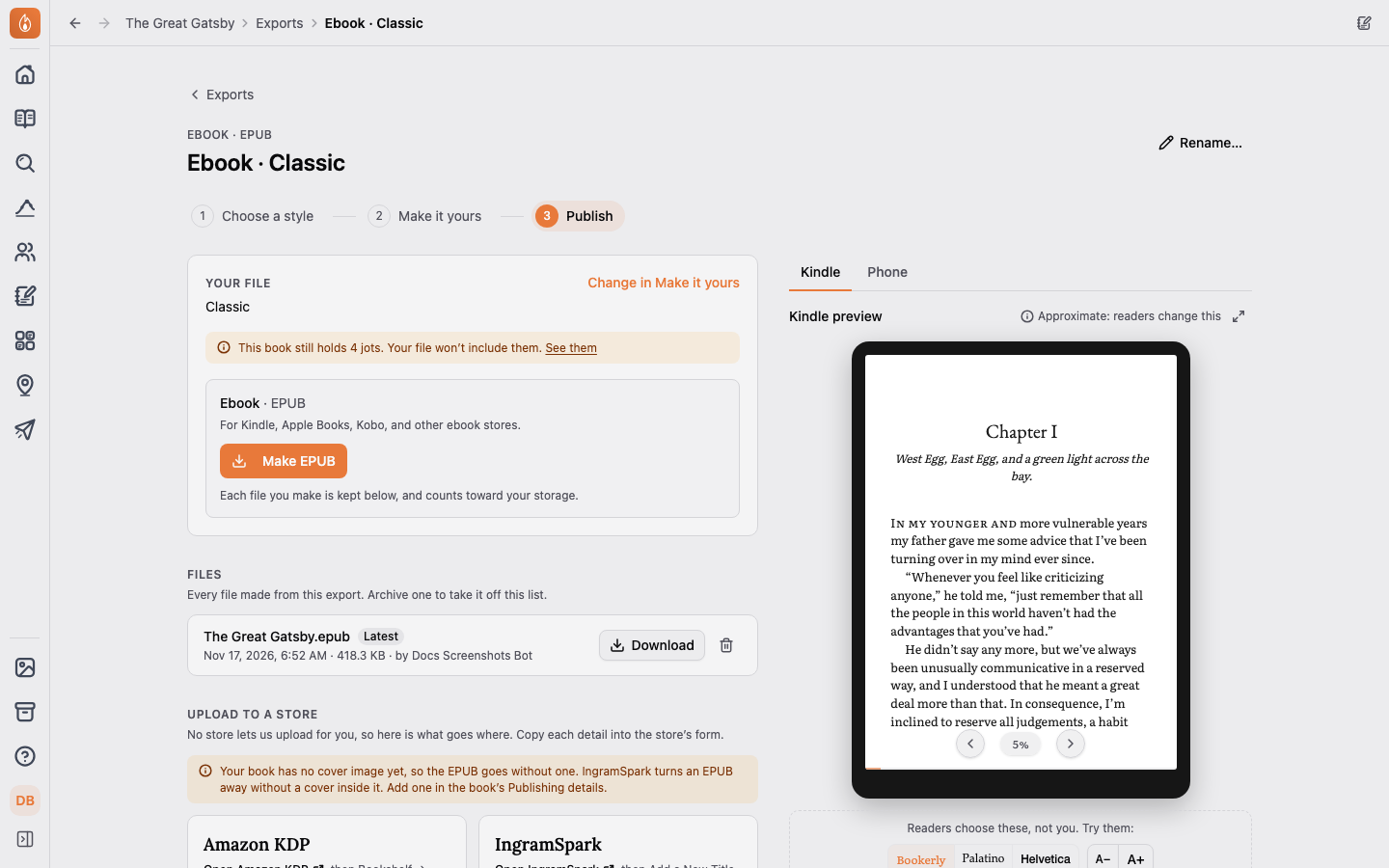
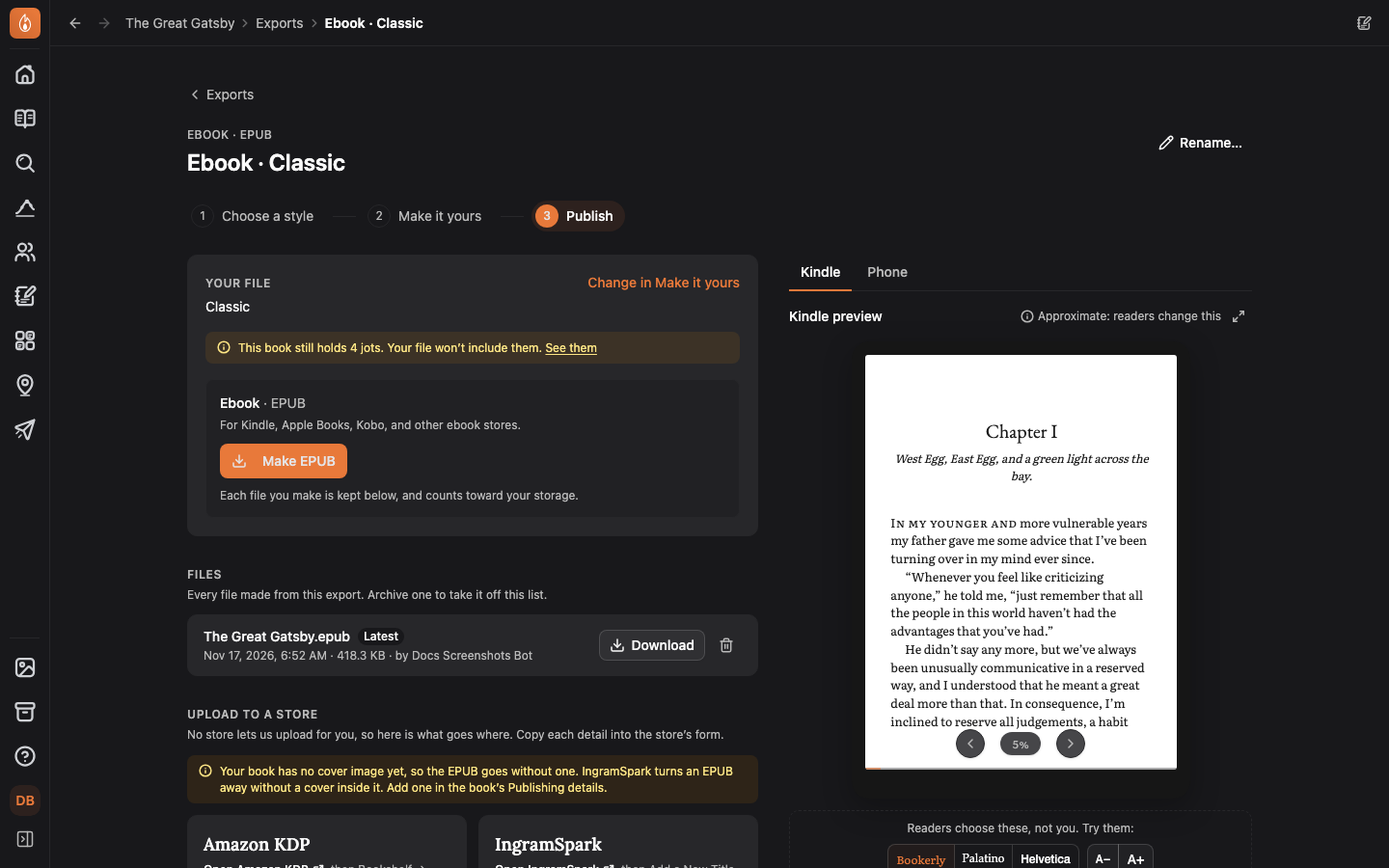
- Select Publish.
- Select Make EPUB or Make print PDF.
Above the button, Your file names the look the file is built with. If jots are left in the book, a note there says how many, and See them opens the Jots page. Jots never go in the file, so you can still make it. If the book has open suggested edits, a note says how many. The file leaves them out until they’re accepted. The file builds from the export’s settings, which takes a few seconds for a long book, then downloads.
What happens next
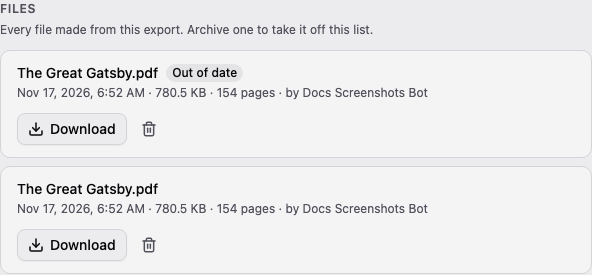
Every file you make is kept under Files, newest first. Each shows when it was made, its size and page count, and who made it. Select Download to get one again.
The newest file is marked “Latest”, or “Out of date” once you change a setting after making it. Make the file again to bring it up to date.
Kept files count toward your storage and are listed in your asset library. To send one to the Archive, select the trash icon beside it, then Archive file. You can restore it from the Archive.
If something goes wrong
The Exports page says “Exports need a connection”
Exports aren’t available offline. Every file is built on the server. Reconnect, and your settings are still saved.
Making the file says “This book has no chapters to publish yet”
Add a chapter to the book, then make the file again.
The file downloaded but isn’t under Files
The note under the button says “Downloaded, but there was no room to keep it: your storage is full.” Free up space in your asset library, then make the file again.
Related
Was this helpful?
Thanks for letting us know.