Commenting on your manuscript
How to comment on a passage, read comments beside the text or in the Review tab, reply, resolve, edit or delete a comment, and who can comment.
Add a comment
Comments let you leave feedback on a passage without changing the text.
- Select the text you want to comment on.
- Select the comment button that appears in the right margin, level with your selection. It’s a speech bubble with a plus sign.
- Type your comment.
- Select Comment, or press ⌘Enter (Ctrl+Enter on Windows).
When comments show beside the text, you write in a new card in the margin, and the text you selected stays highlighted while you type. Otherwise the info bar, the panel on the right of the editor, opens on its Review tab with your new comment picked out. Adding a comment switches Writing to Reviewing.
Show comments with Reviewing
Reviewing shows comments: commented text is highlighted, and each comment sits in the margin beside its text. It shows suggested edits in color too. Suggesting shows them the same way.
- Select the mode menu, the round button at the right end of the toolbar above the page. Its icon shows the mode you’re in.
- Choose Reviewing.
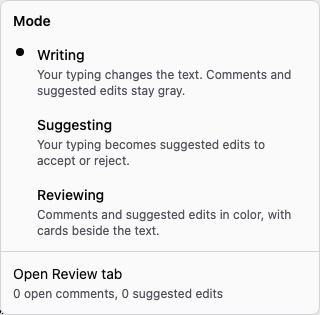
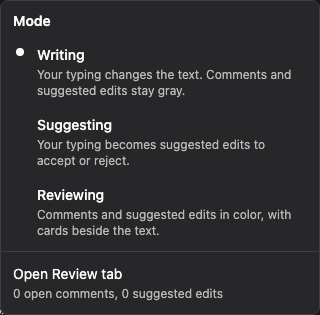
Choose Writing to go back. In Writing, comments and suggested edits stay gray. The mode is kept for this project on this device.
The small number on the mode menu counts the open comments and suggested edits, so you can see they’re waiting.
Opening the info bar’s Review tab also switches Writing to Reviewing. Open Review tab, at the bottom of the mode menu, opens it. Closing the info bar leaves the mode as it is.
Picking Reviewing turns off Focus Mode, and turning on Focus Mode switches Reviewing back to Writing.
Read comments beside the text
In Reviewing and Suggesting, each comment shows as a small speech-bubble pill in the margin, level with its text. Comments close together share one pill with a count. Suggested edits get pencil pills of their own.
- Open a group: select its pill, or click its highlighted text. Its comments open as cards, and any other open group folds back to its pill.
- Close it: click the empty margin, press Esc on a card, or move the cursor off the comment’s highlighted text.
- From the keyboard: press ⌥⌘Enter (Ctrl+Alt+Enter on Windows) in the text to open the comment at the cursor, or the next one below. ↑ and ↓ move between cards, and Esc takes you back to the text.
Cards need room beside the page. Where there isn’t enough, such as a narrow window or an even split, comments stay in the Review tab instead. Clicking highlighted text there opens the info bar on that comment.
A replace from Search that changes commented words moves the comment onto the new words. If you delete the text a comment was on, its card shows “Context removed” and quotes the old text. If its paragraph is gone too, it joins a “Context removed” pill at the top.
Read comments in the Review tab
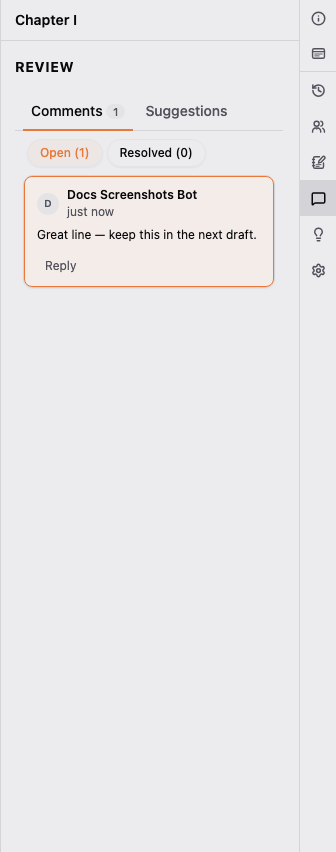
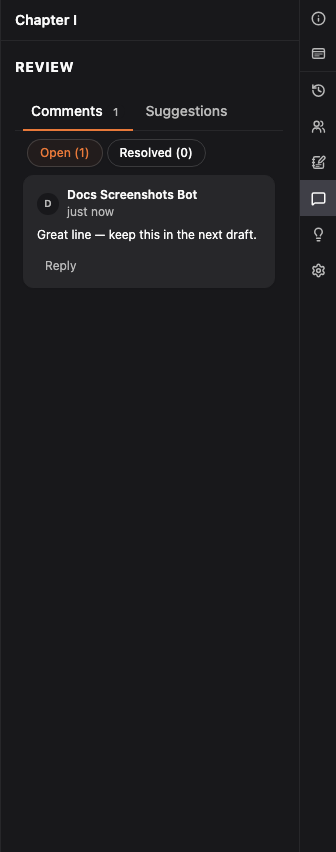
Select Open info bar at the top right, then select Review. Its Comments tab lists comments; select Open or Resolved to switch between them. Suggested edits are on its Suggestions tab. In a chapter with several scenes, they’re grouped by scene. Select a comment to jump to its text.
Reply to a comment
- Under the comment, select Reply.
- Type your reply.
- Select Reply, or press ⌘Enter (Ctrl+Enter on Windows).
Resolve a comment
Point at the comment and select the check mark, Resolve comment. It moves under Resolved, and its text stays marked in grey. Select the check mark again, Unresolve comment, to reopen it.
In the margin, a resolved card fades but stays where it is until you click away, so you can undo it. To see a resolved comment again, click its grey text.
The owner can resolve any comment. A collaborator can resolve only their own.
Edit or delete a comment
Point at your comment, select its ⋮ menu, then choose Edit comment or Delete comment. Deleting a comment deletes its replies too.
You can edit only your own comments. You can delete your own, and the owner can delete any comment.
Comment while offline
You can add, reply to, and resolve comments without a connection. They sync when you’re back online.
Who can comment
Owners and collaborators add and reply to comments. Editors and beta readers comment on the draft you send them instead. Their comments reach your manuscript when you select Add to the manuscript.
Related
- Turning comments into revisions
- Suggesting, accepting, and rejecting edits
- Writing together in real time
Was this helpful?
Thanks for letting us know.