Mapping your story on the Plot Board
How the Plot Board lays out your book as a column per part, and how to add chapters, beats, and parts, open a card, and show a chapter's scenes.
What’s on the board
The Plot Board is a picture of your book. Each part is a column, with its chapters in reading order and your planned beats among them. A beat is a moment you plan for.
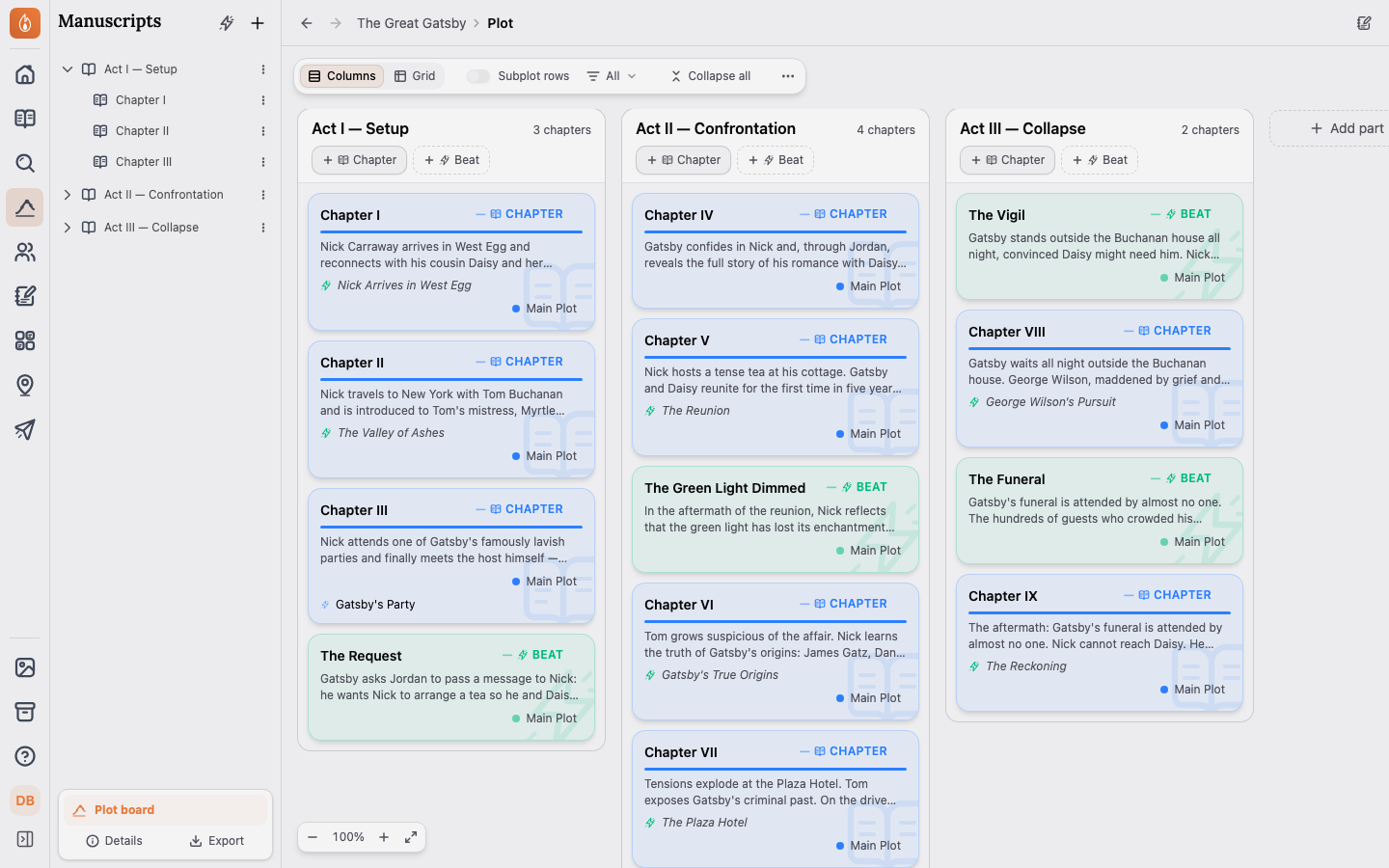
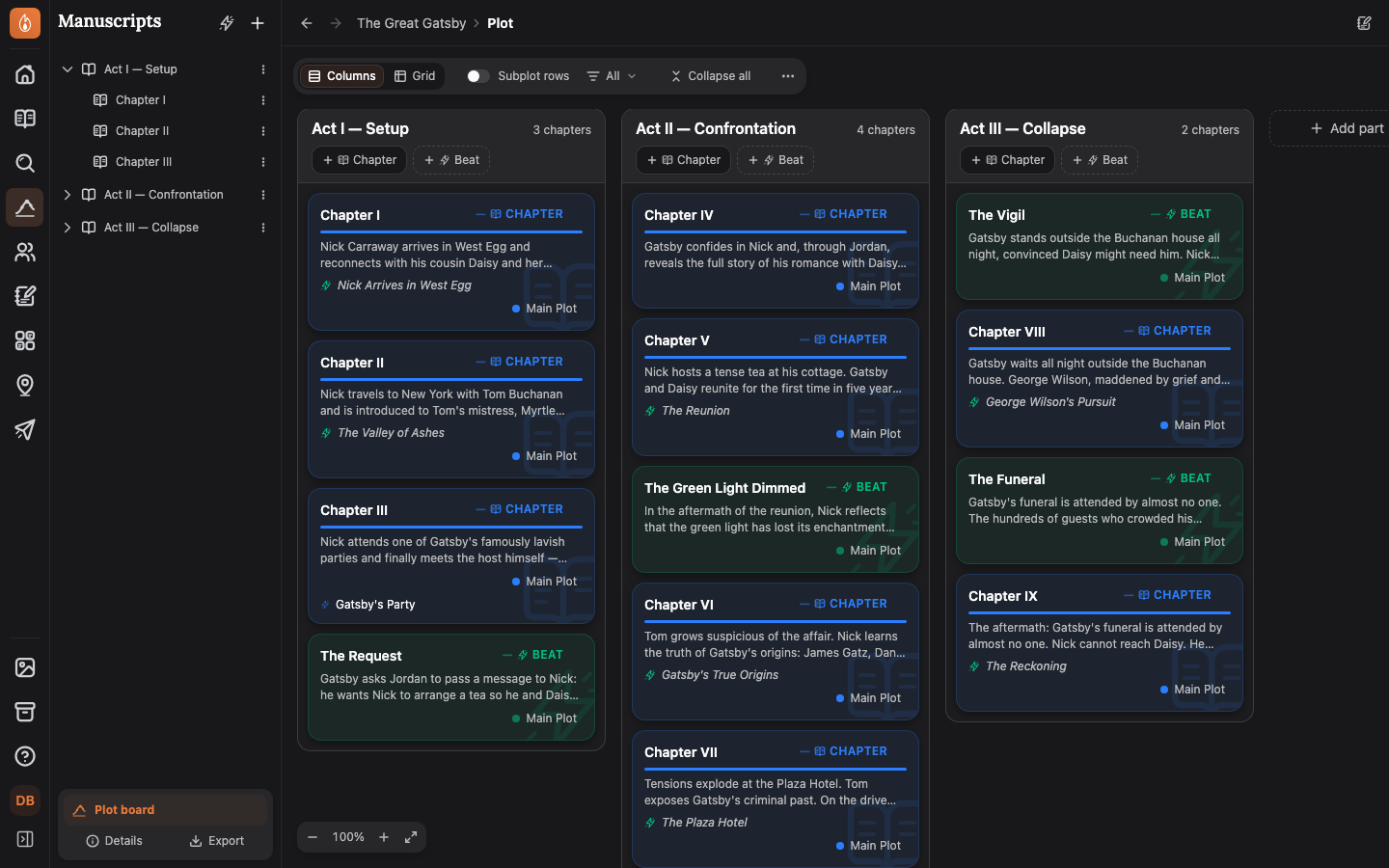
- A column for each part. A book with no parts has one column called “The book”. Once you have parts, any chapter still outside them sits in a column called “Not in a part”.
- A card for each chapter, with its scenes listed underneath.
- A card for each beat that isn’t attached to a chapter or scene yet.
The board keeps no order of its own. It reads your manuscript. A card you move here moves in the manuscript, and a chapter you reorder in the binder moves here.
Switch to the Grid view
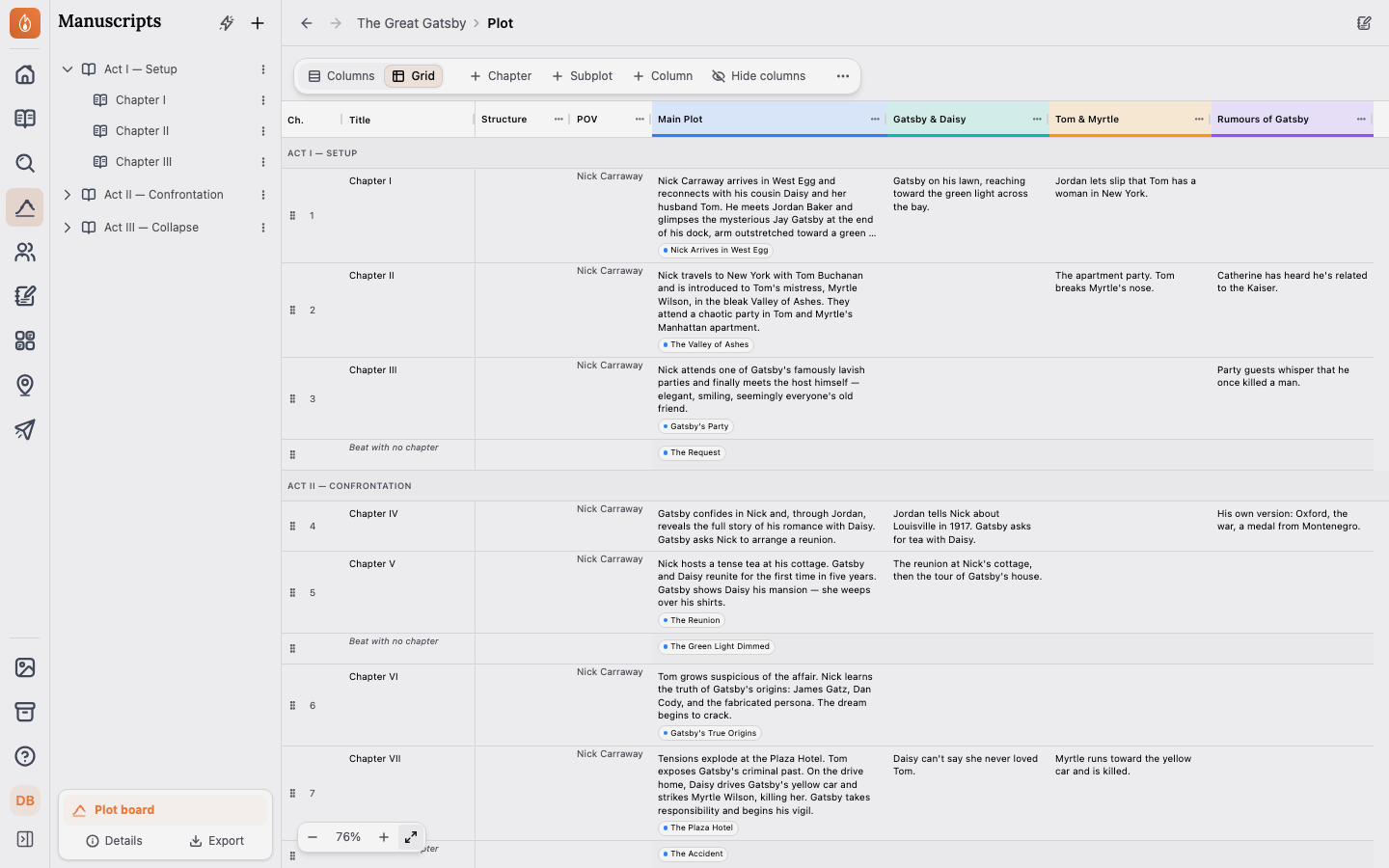
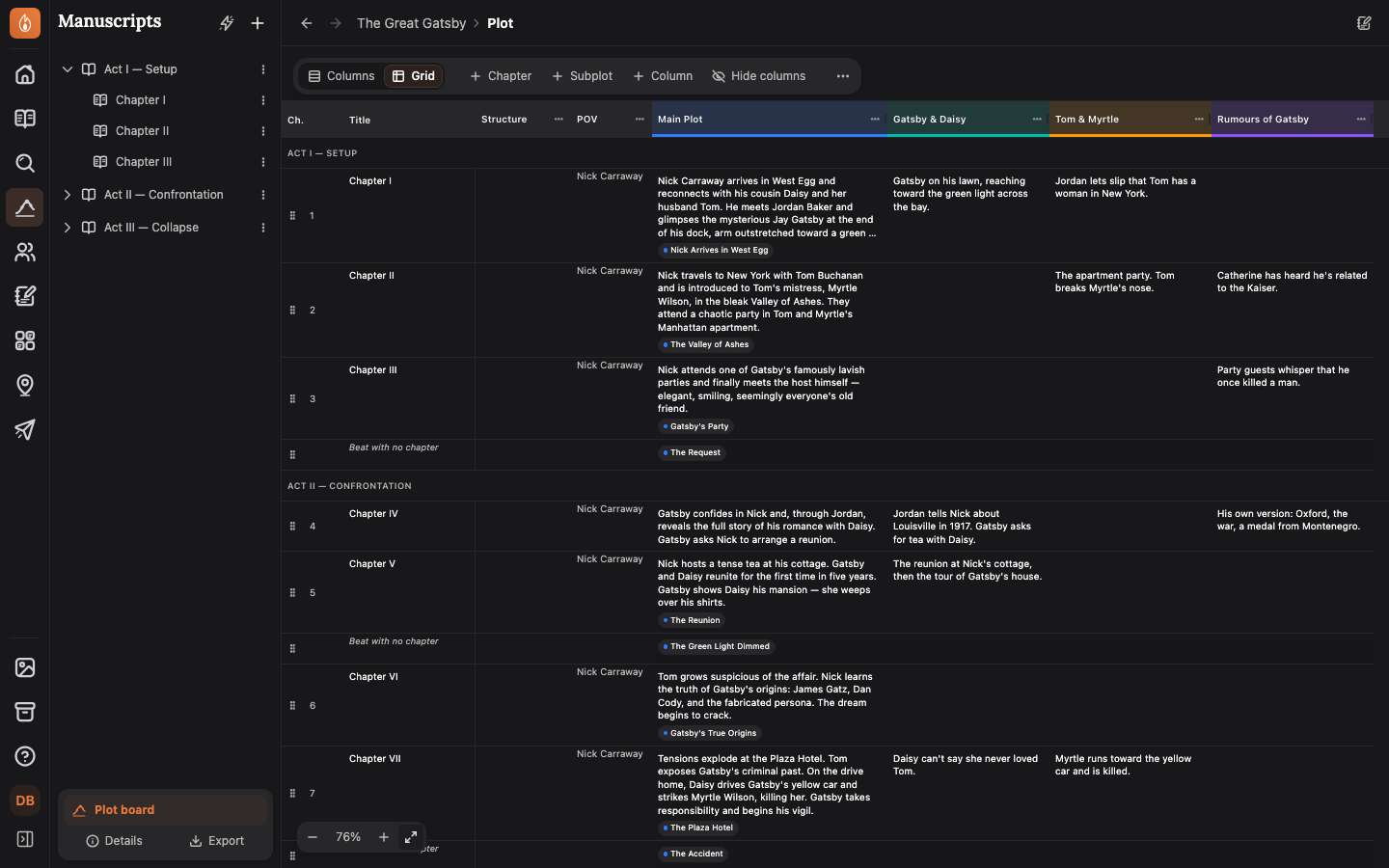
Select Grid at the left of the toolbar to see the same book as a spreadsheet. It has a row for each chapter and a column for each subplot (see Choosing what the board shows). Select Columns to switch back.
Add a chapter, a beat, or a part
Every column header has a + Chapter button and a + Beat button. Each adds to the end of that column. A new chapter gets a name like “Chapter 4”. A new beat opens with its name, like “Beat 2”, selected on the card, so you can type its real name.
A new chapter starts with its first scene already in it. To add another scene, point at the chapter’s card and select + Scene.
Add part sits after the last column and starts a new part after everything else in the book. A part groups chapters into an act. See Organizing your manuscript.
Beats are made on the Plot Board, next to the chapters they’re a plan for. The manuscript binder’s + menu doesn’t offer one.
Open a card
Select a card’s title to open it over the board. Name it there, and say in one line what happens in it.
The panel on the right holds its tags and its subplot. A chapter also lists its scenes, and a beat shows what it’s attached to.
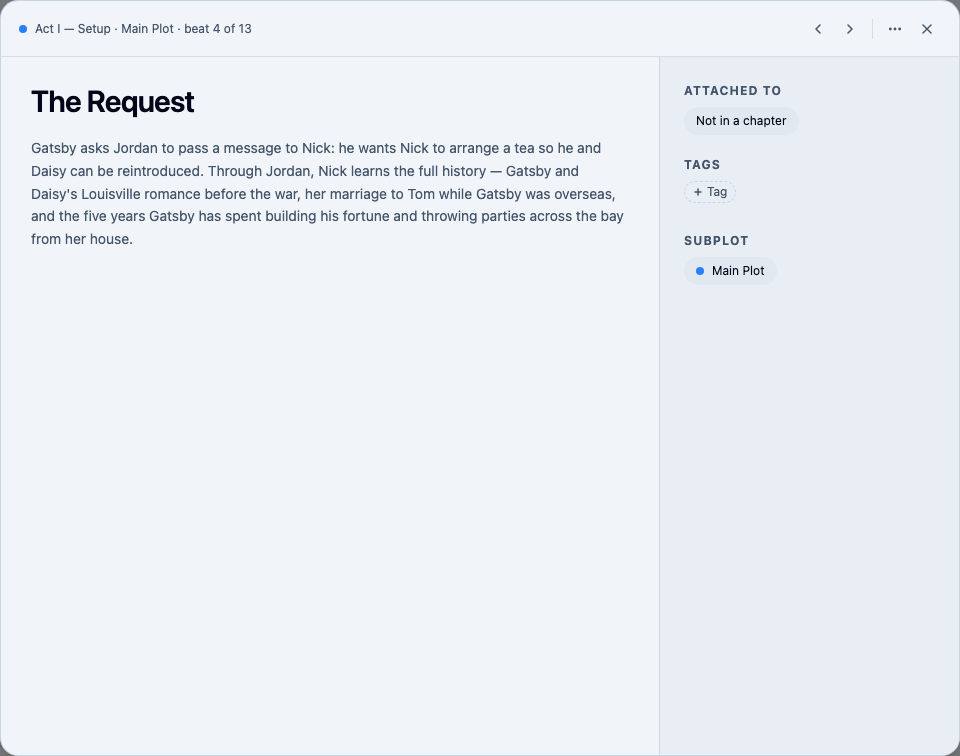
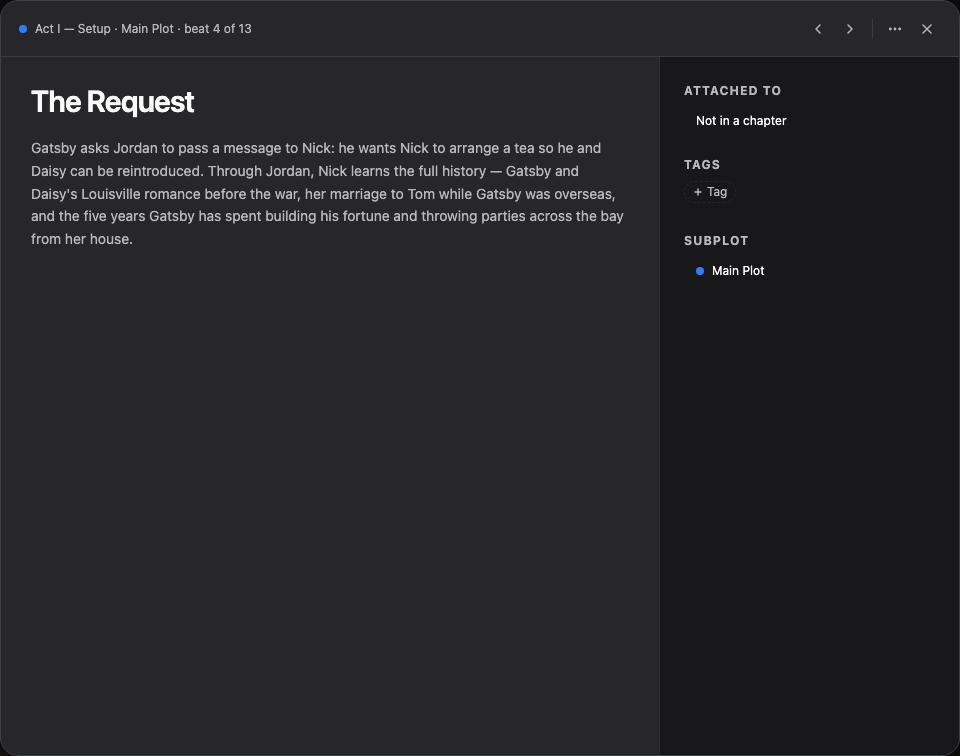
The arrows at the top step to the previous and next card in the book. A chapter or scene also has Open in the editor, which takes you to its text.
Show a chapter’s scenes
A chapter card lists its scenes as rows. Select the arrow beside the title to collapse the card to a bar, and again to open it. A one-scene chapter is that scene, so its card has no arrow and doesn’t list the scene.
When the board is empty
A book with no chapters and no beats shows a card headed “Plot” in place of the board.
- Start from a structure lays down the beats of a known story shape. See Starting from a structure.
- Create your first beat puts a single beat on the board.
Related
Was this helpful?
Thanks for letting us know.