Finding anything with the command menu
How to open the command menu with ⌘K, go to any chapter, character, page, or setting, choose where it opens, run a command, and narrow the list with a key.
Open the command menu
Press ⌘K (Ctrl+K on Windows) on any page, or select the ⌘K key at the top right of the screen. On a phone, tap the ⌘ icon there. The command menu gets you to any part of your project, and runs common commands, without leaving the keyboard.
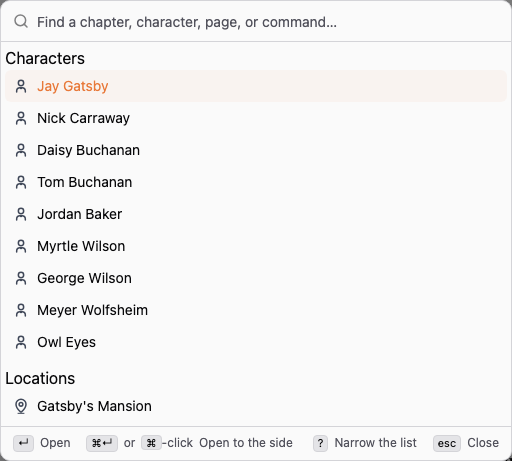
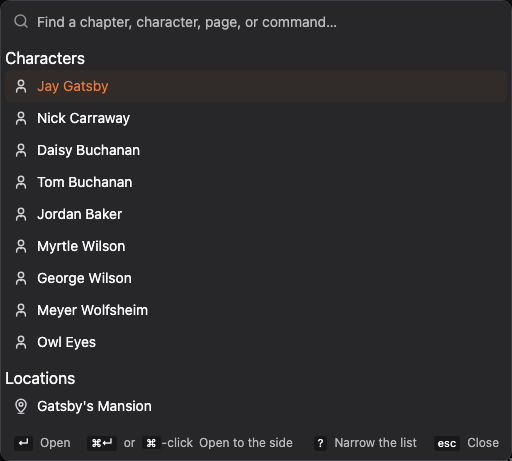
Go to a chapter, character, or page
- Press ⌘K.
- Type part of a name. In a project, the menu finds chapters, scenes, characters, locations, notes, and boards. It also finds every page and Settings page.
- Press Enter, or select the name.
Outside a project, like on the dashboard, the menu lists pages, settings, and commands only.
Choose where it opens
- Enter opens it in place of what’s open. While tabs are open, it opens in a new tab.
- ⌘↵ (Ctrl+Enter) or ⌘-click (Ctrl+click) opens it to the side, next to what you’re writing.
- On a page with no editor, like the Plot, ⌘↵ goes back to your last chapter and opens the item beside it.
See Working side by side with tabs for what you can do once it’s open.
Run a command
Type a command’s name and press Enter. The commands are Quick capture, Search the project, New chapter…, New character, New note, and Keyboard shortcuts.
While a chapter is open, the menu also lists the editor’s options: Focus Mode, Typewriter Mode, spelling and grammar, jots, Focus Dimming, paragraph style, font, width, and zoom. With only a note open, it lists Focus Mode, spelling and grammar, and zoom.
Type > first to see only commands. Your last 3 commands show at the top, under Recent.
Narrow the list with a key
Type one of these keys first to see only one kind of thing:
| Key | Shows |
|---|---|
> | Commands and the editor’s options |
/ | Pages and settings |
+ | Open tabs |
# | Chapters and scenes |
@ | Characters |
^ | Locations |
* | Notes |
! | Boards |
Type ? to see this list in the menu. To go back to everything, press Backspace in the empty box. Outside a project, only >, /, and ? work.
If something goes wrong
It says “Nothing by that name.”
The menu matches names, not the words inside a chapter or note. To find words in your text, use Search the project (⇧⌘F). Folders and archived items aren’t listed.
An editor option is missing
The editor’s options show only while a chapter or note is open on the screen. Open one, then press ⌘K again.
Related
Was this helpful?
Thanks for letting us know.