Suggesting, accepting, and rejecting edits
How to suggest changes instead of making them, find suggested edits in the text, the margin, and the Review tab, and accept or reject them.
Switch to Suggesting
In Suggesting, your changes don’t replace the text. They wait as suggested edits until the owner or a co-author accepts or rejects them.
- Select the mode menu, the round button at the right end of the toolbar above the page.
- Choose Suggesting.
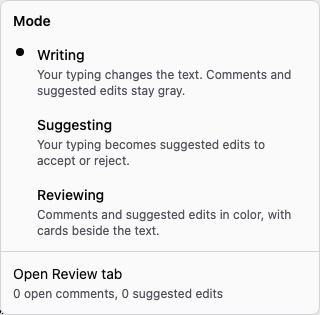
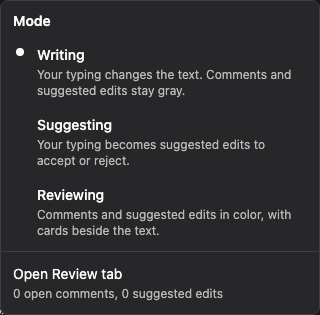
The mode menu’s icon turns to a pen on a line. The top edge of the page and your cursor turn the color of suggested edits.
Typing, deleting, formatting, and new paragraphs all become suggested edits. Choose Writing in the same menu to stop.
The mode is saved for this project on this device. It works offline, and your suggested edits sync when you’re back online.
What a suggested edit looks like
Suggested edits show in your color theme’s second color:
- Added words: underlined.
- Deleted words: struck through.
- Formatting, such as bold or italics: a dotted underline.
- A new paragraph, joined paragraphs, or a changed heading or alignment: a bar in the left margin.
Put your cursor in a suggested edit and a frame shows everything it changes.
In Writing, added words read as plain text and deleted words stay struck through in gray. They keep their color in Suggesting and Reviewing. See Commenting on your manuscript to switch to Reviewing.
Find suggested edits
The small number on the mode menu counts the open suggested edits and comments.
In Suggesting and Reviewing, each suggested edit sits in the margin as a pencil pill, level with its text and apart from comments. Select the pill, or click the suggested text, to open its card. The card shows who suggested it, when, and what it changes.
Where the margin has no room, such as a narrow window, select Open info bar at the top right, then Review, then Suggestions. Clicking suggested text there opens that tab too.
Accept or reject a suggested edit
On its card, select Accept to keep the change or Reject to drop it. Each suggested edit on the Review tab’s Suggestions tab has both too.
Accepting or rejecting needs a connection. Offline, both are grayed out, and pointing at them shows “Accept and reject need a connection.”
Accept or reject them all
- Open the info bar’s Review tab. Open Review tab, at the bottom of the mode menu, opens it too.
- Select Suggestions.
- Select Accept all or Reject all.
They cover everything listed. In Whole Chapter View, that’s every scene in the chapter.
Who can suggest, accept, and reject
The owner and collaborators can switch to Suggesting, and accept or reject anyone’s suggested edits, their own included. Editors and beta readers can’t open the Studio. They comment on the draft you send them instead.
What leaves suggested edits out
Until a suggested edit is accepted, these read the text without it:
- Word counts and goals.
- Exports: .docx, EPUB, and print PDF.
- Drafts you send to readers.
- Search.
When a book has open suggested edits, the last step of an ebook or print export says how many.
The full project export keeps them in its structured data. Its Markdown files leave them out.
If something goes wrong
“Suggested edits can’t change lists or quotes yet”
Suggesting can’t change lists, quotes, or code blocks yet. It can’t split a scene or use Replace in Search either. Each says so when you try, for example “Switch to Writing to split the scene.”
Choose Writing in the mode menu, make the change, then switch back to Suggesting.
Accept and Reject are grayed out
You’re offline. Accepting and rejecting need a connection. Your suggested edits stay in the text until you’re back online.
Suggesting isn’t in the mode menu
Only the owner and collaborators can suggest edits, and only in the manuscript. Notes have no mode menu.
Related
Was this helpful?
Thanks for letting us know.