Publishing to a store
How to upload your EPUB and print PDF to Amazon KDP, IngramSpark, Apple Books, Kobo Writing Life, and Draft2Digital, with the cover sizes your designer needs.
Upload your files to each store
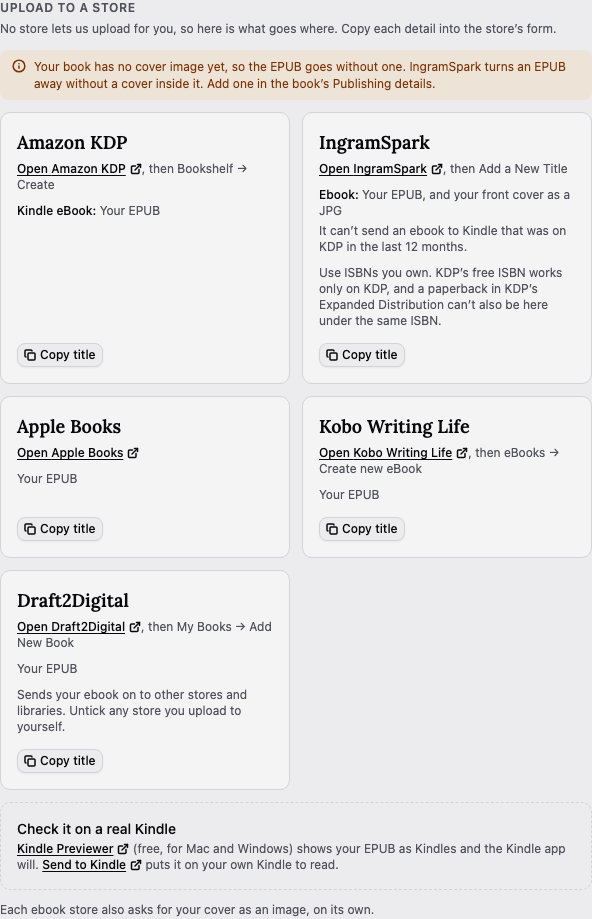
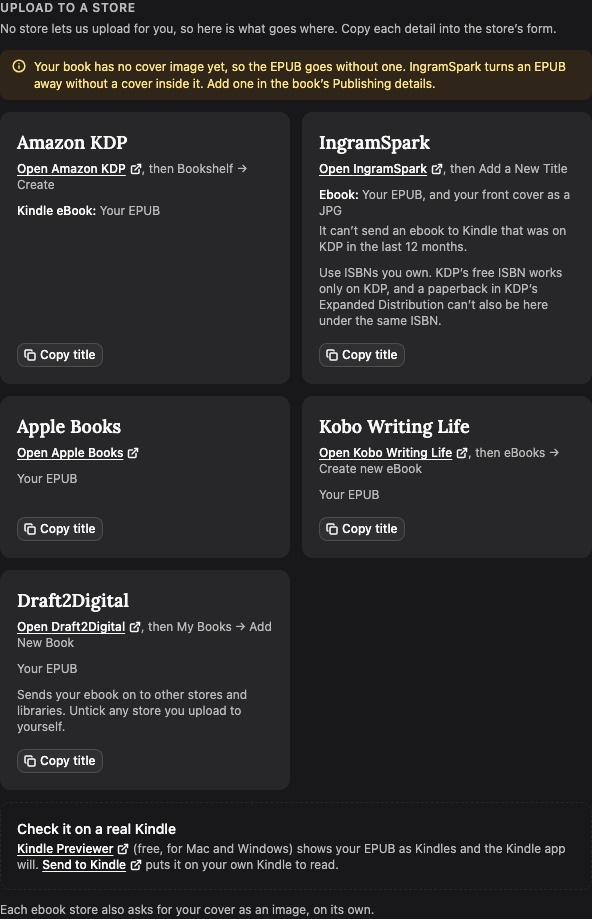
You upload your book to each store yourself, and Publish lists what each one asks for.
The Publish step of an ebook or print export has an Upload to a store section. An ebook export lists the stores that take an EPUB. A print export lists Amazon KDP and IngramSpark.
Each store’s card names the file each product takes and links to where its upload starts. Copy buttons, like Copy title, put the book’s title, subtitle, and the right ISBN on your clipboard. ISBNs copy as digits only.
- Amazon KDP (kdp.amazon.com, then Bookshelf → Create): a Kindle eBook takes your EPUB. A paperback takes your print PDF and a full cover PDF (back, spine, and front). KDP asks which paper to print on, usually cream for a novel. A hardcover takes the same print PDF and a cover made from KDP’s cover template. It needs its own ISBN, a 5.5 × 8.5 or 6 × 9 in trim, and 75 to 550 pages.
- IngramSpark (ingramspark.com, then Add a New Title): reaches bookshops and libraries. A paperback or hardcover takes your print PDF and a cover made on IngramSpark’s own template. An ebook takes your EPUB and your front cover as a JPG. IngramSpark can’t send an ebook to Kindle that was on KDP in the last 12 months. Use ISBNs you own: KDP’s free ISBN works only on KDP.
- Apple Books (authors.apple.com): takes your EPUB.
- Kobo Writing Life (kobo.com/writinglife, then eBooks → Create new eBook): takes your EPUB.
- Draft2Digital (draft2digital.com, then My Books → Add New Book): takes your EPUB and sends it on to other stores and libraries. Untick any store you upload to yourself.
Each ebook store also asks for your cover as an image, on its own.
Get the sizes for your cover
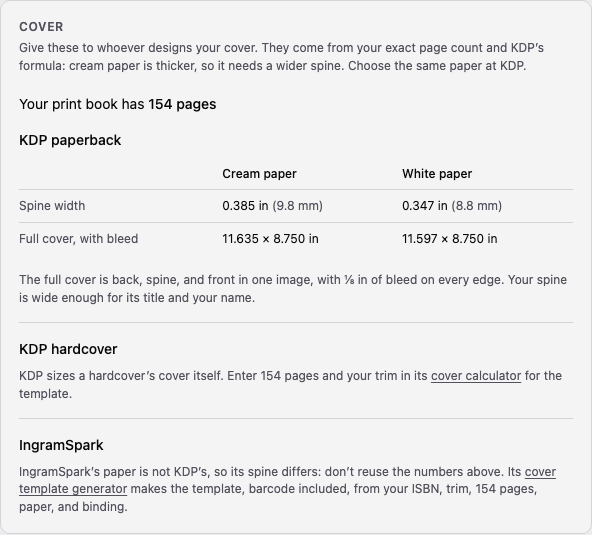
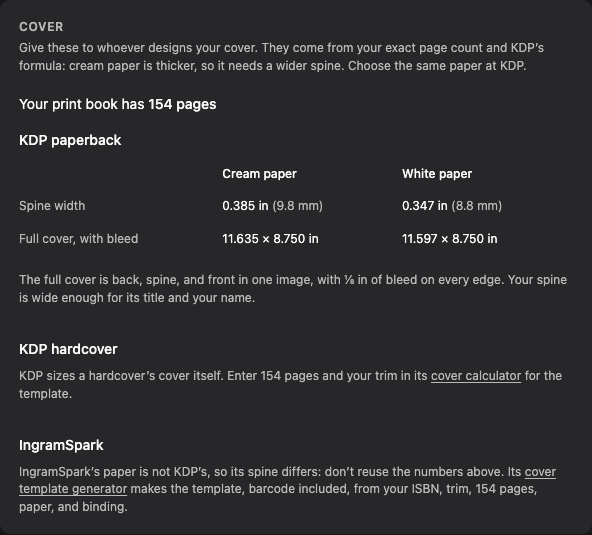
On a print export, the Cover panel on Publish gives your cover designer the numbers they need. They come from your book’s exact page count. Publish typesets the whole book to count them, which can take a few seconds for a long book.
For a KDP paperback, it shows the spine width and the full cover size for cream and white paper. The full cover has ⅛ in of bleed on every edge.
Cream paper is thicker, so its spine is wider. Choose the same paper at KDP that your cover was made for.
Notes appear when a book is under KDP’s 24-page minimum. They also appear over its maximum: 776 pages on cream, 828 on white.
A note also appears under 80 pages, which is too thin for text on the spine. Notes never stop you downloading.
A KDP hardcover’s cover comes from KDP’s own cover calculator, which the panel links to. IngramSpark’s paper differs from KDP’s, so its spine differs too. Use its cover template generator, also linked, instead of KDP’s numbers.
Use the right ISBN for each file
Each file prints its own ISBN from the book’s Publishing details. The EPUB’s copyright page prints the EPUB ISBN.
The print PDF prints your paperback or hardcover ISBN. With both filled in, it prints both, each labelled with its binding.
Check your book on a real Kindle
Kindle Previewer (free, for Mac and Windows) shows your EPUB as Kindles and the Kindle app will. Send to Kindle puts it on your own Kindle to read. Both are linked under the store cards on an ebook export.
If something goes wrong
Publish says your book has no cover image yet
The EPUB goes without a cover, and IngramSpark turns away an EPUB without one. Add a cover image in the book’s Publishing details, then make the EPUB again.
Related
Was this helpful?
Thanks for letting us know.