Linking notes with wikilinks and Notes tabs
How to link a note to another note, a scene, a character, or a location, by typing [[ or from a Notes tab, and see everything a note links to.
Link from a note
A wikilink is a [[ link in a note’s text. Use one to reach a character, a scene, or another note from what you’re writing.
- In a note, type
[[. - Type part of a name. The list shows matching items from across your project. Each one says what it is, such as Note or Character.
- Select one to insert the link.
Scenes come first, in manuscript order. A chapter’s only scene goes by the chapter’s name. A scene among several shows its chapter too, as in “Chapter I · Scene 2”. A beat shows where it sits and is marked Beat.
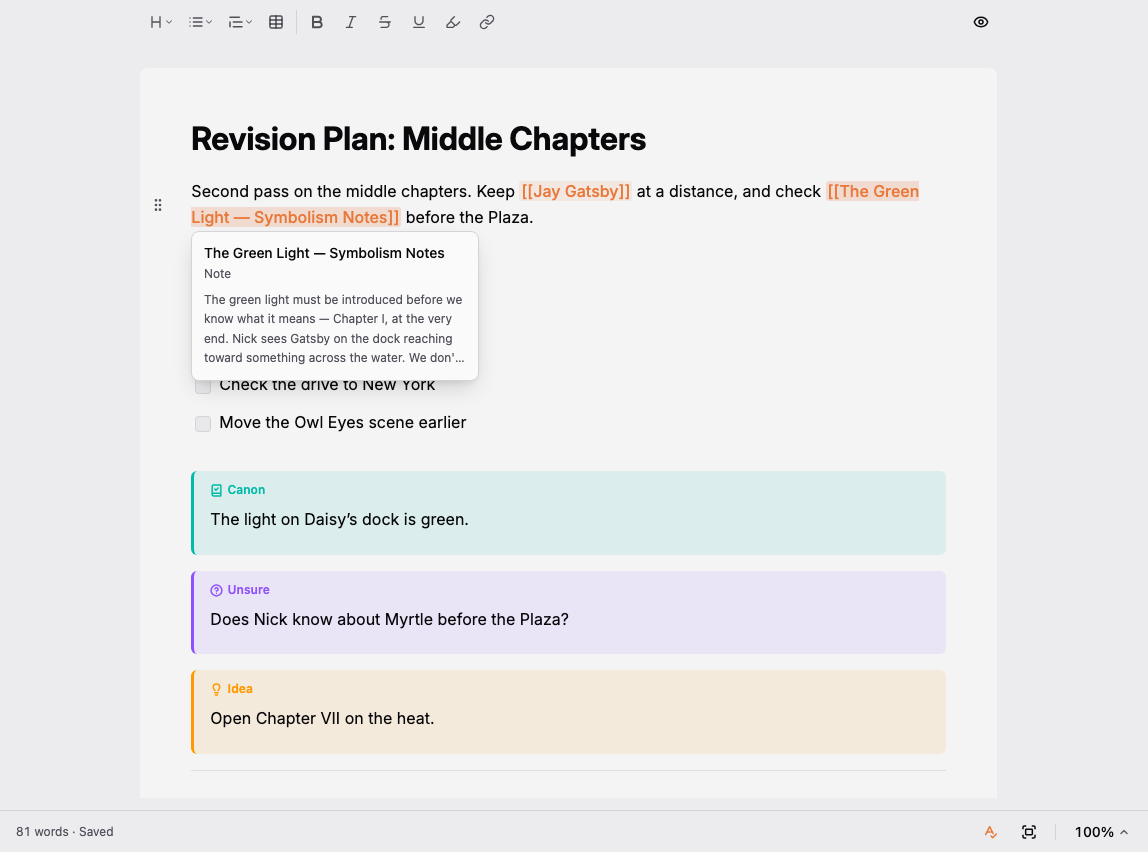
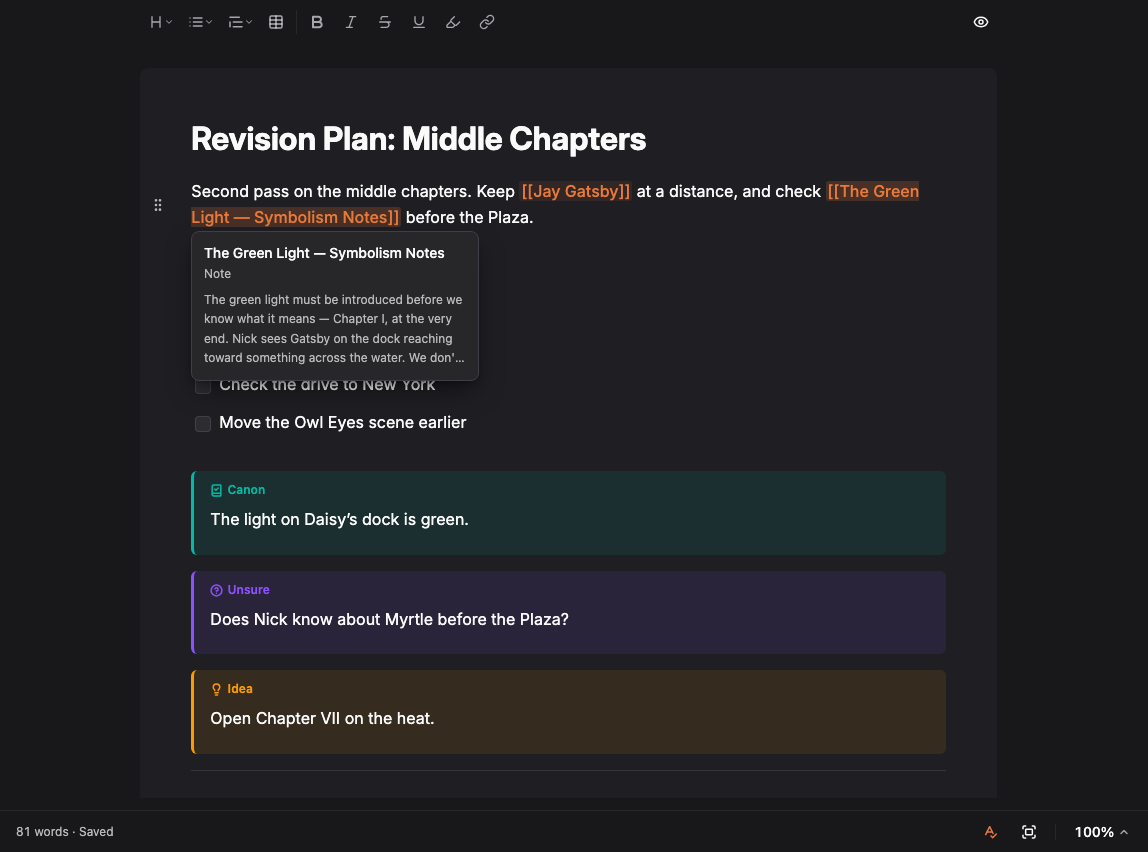
Point at a link for a moment to see a card with its name and kind. A note’s card adds its first lines. Click the link or the card to open the item.
Create a note as you link it
When nothing in your project has exactly the name you typed, the list ends with Create note.
- Type
[[and the new name. - Select Create note.
The Studio makes an empty note with that name at the top of your Inbox. The link opens it.
Link a note from a Notes tab
Scenes, chapters, characters, and locations each list their notes in the info bar. Link a note here to have it beside the page it’s about.
- Open the scene, chapter, character, or location.
- In the info bar, select the Notes tab. A location’s info bar shows only its notes, so it has no tabs.
- Select Link a note, then pick the note.
Select × beside a note to unlink it.
The list also shows every note with a wikilink to that page. These are marked “in note”. To remove one, delete the link in the note’s text.
Notes on a chapter of several scenes
In Whole Chapter View and on the chapter’s details page, the Notes tab lists each scene in turn. Each scene has its own Link a note, because notes link to scenes, not to chapters.
Read a linked note without leaving the page
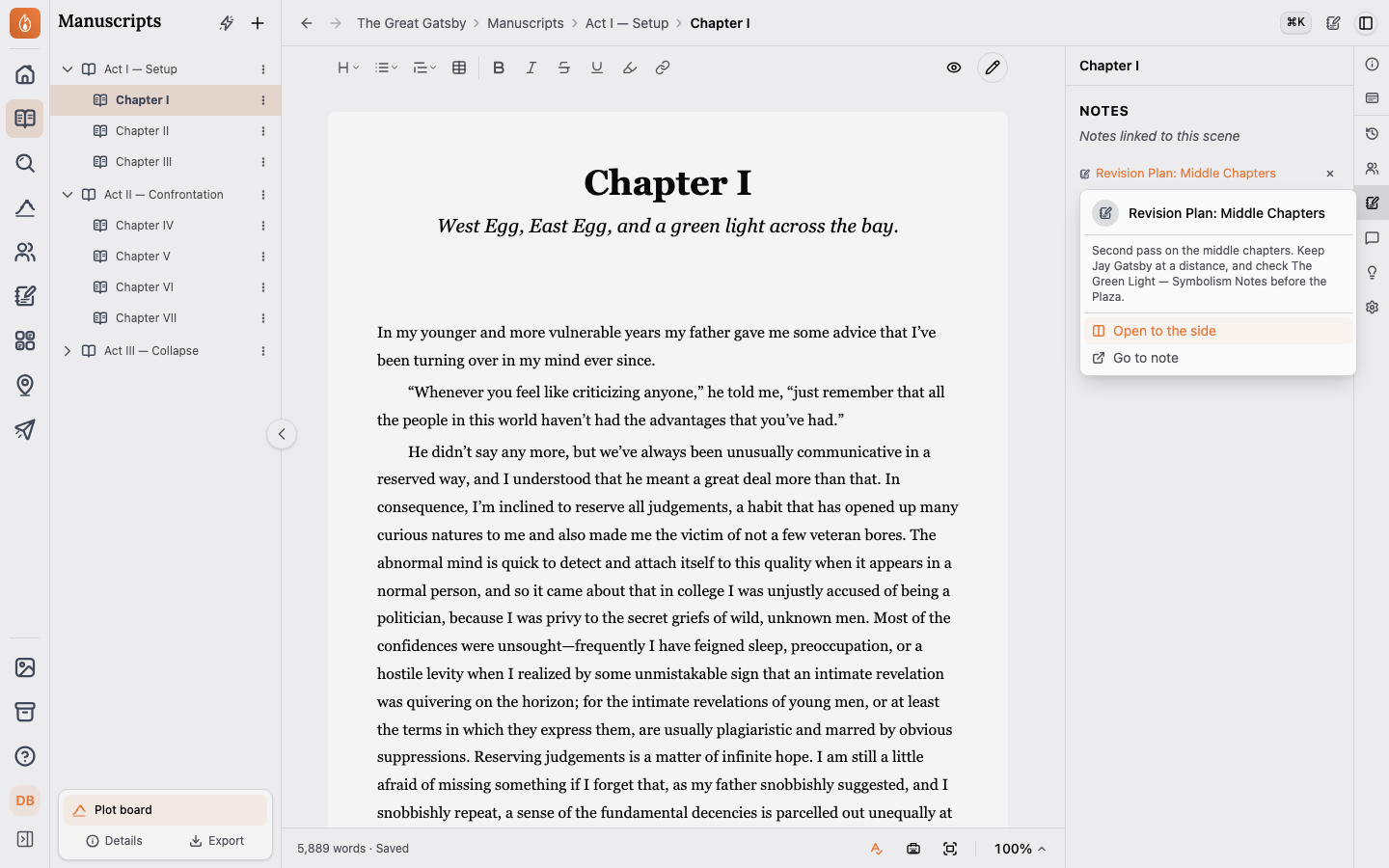
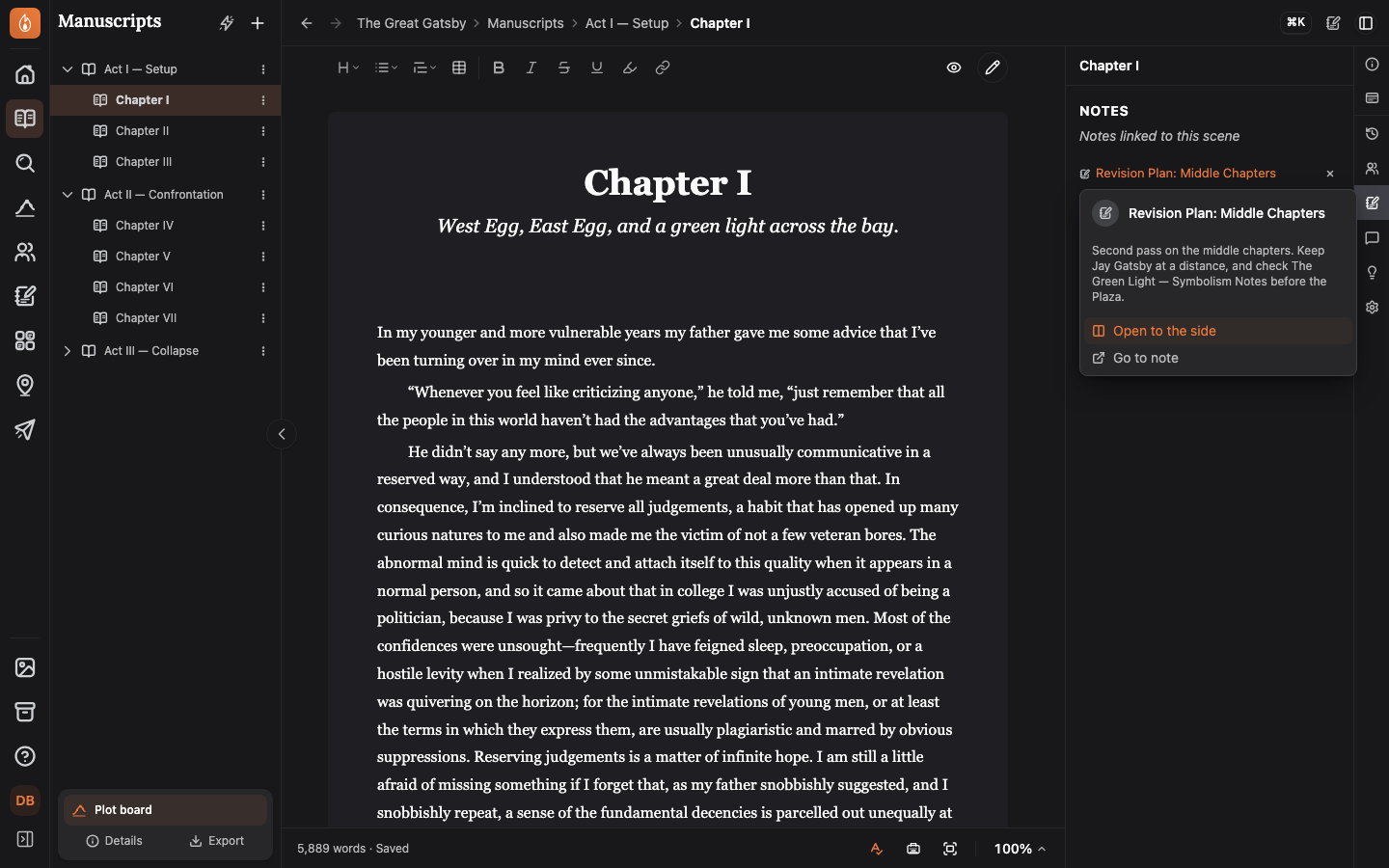
Click a note’s name in a Notes tab. A card opens with the start of the note’s text.
- Open to the side: opens the note in a tab beside your text. It shows only on manuscript pages.
- Go to note: opens the note’s page.
See everything a note links to
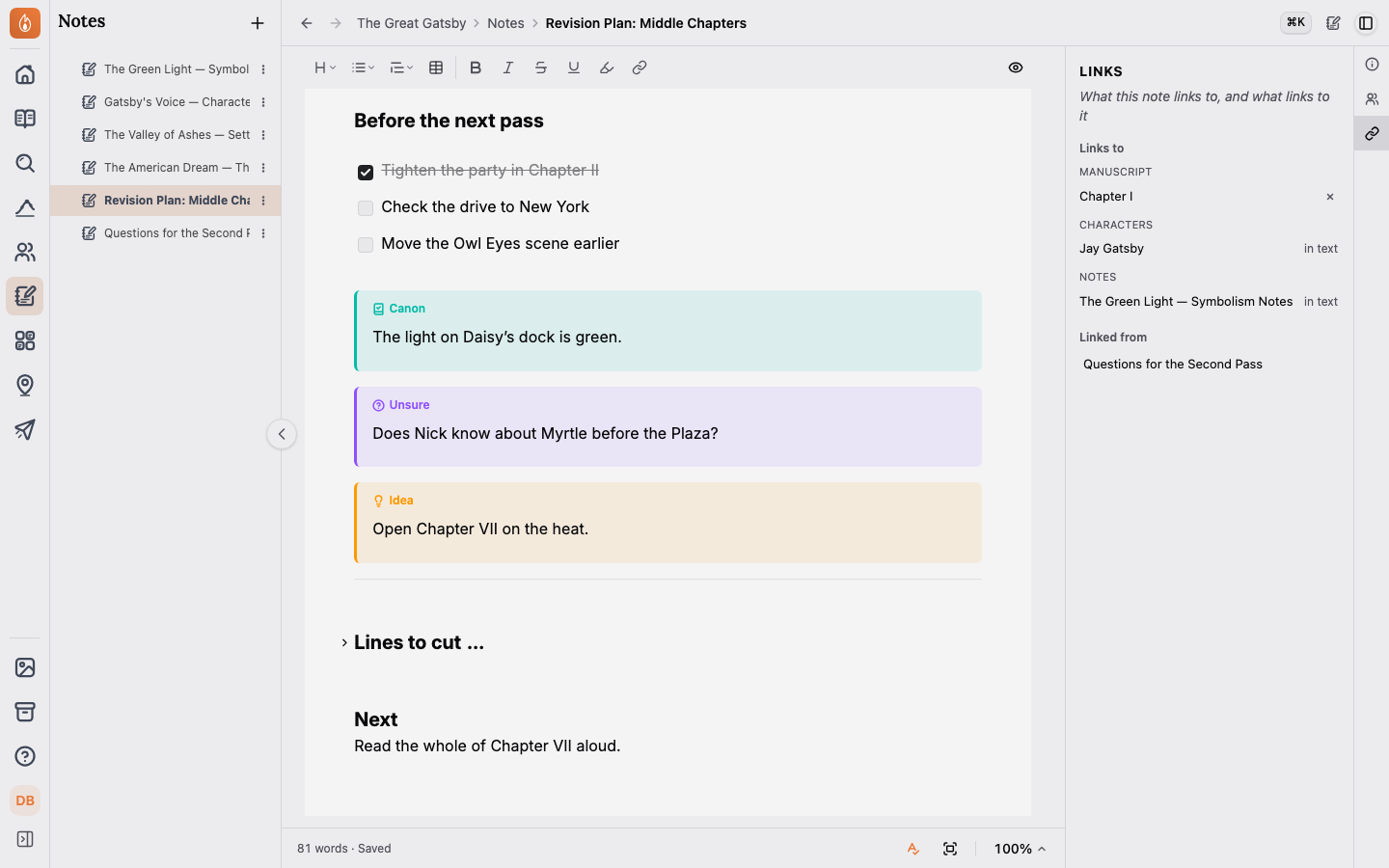
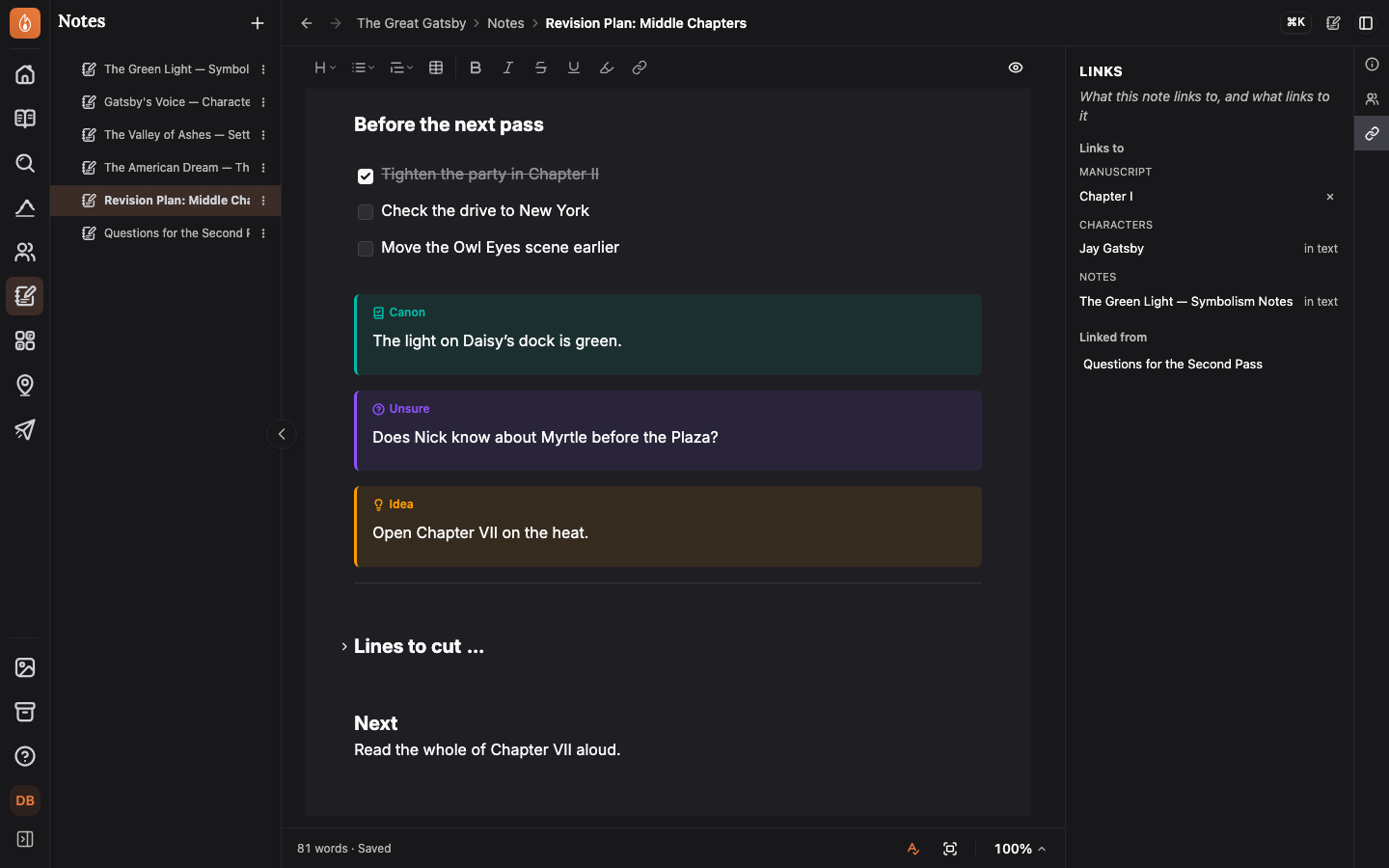
Open the note, then select the info bar’s Links tab. Select a name to open it. The tab updates as you add or remove links.
- Links to: everything the note links to, grouped by kind. A wikilink is marked “in text”, and you remove it in the note’s text. Anything linked from a Notes tab has × to unlink it.
- Linked from: the notes and boards with a wikilink to this note. Point at one to see its first lines.
Related
Was this helpful?
Thanks for letting us know.