The Studio tour
Where things are in the Studio: the sidebar, project home, the breadcrumb trail and back buttons, the command menu, and the sync indicator.
The sidebar
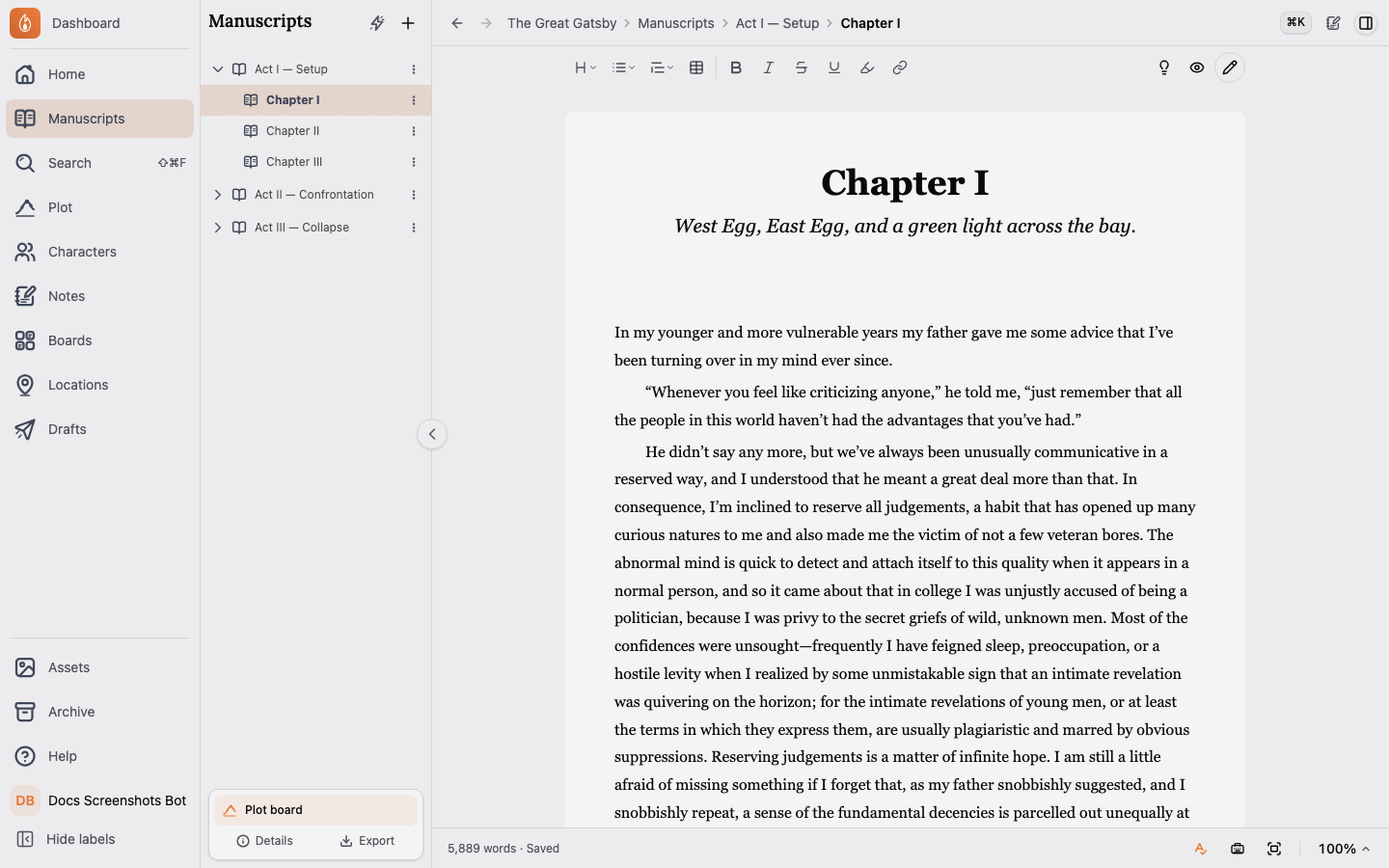
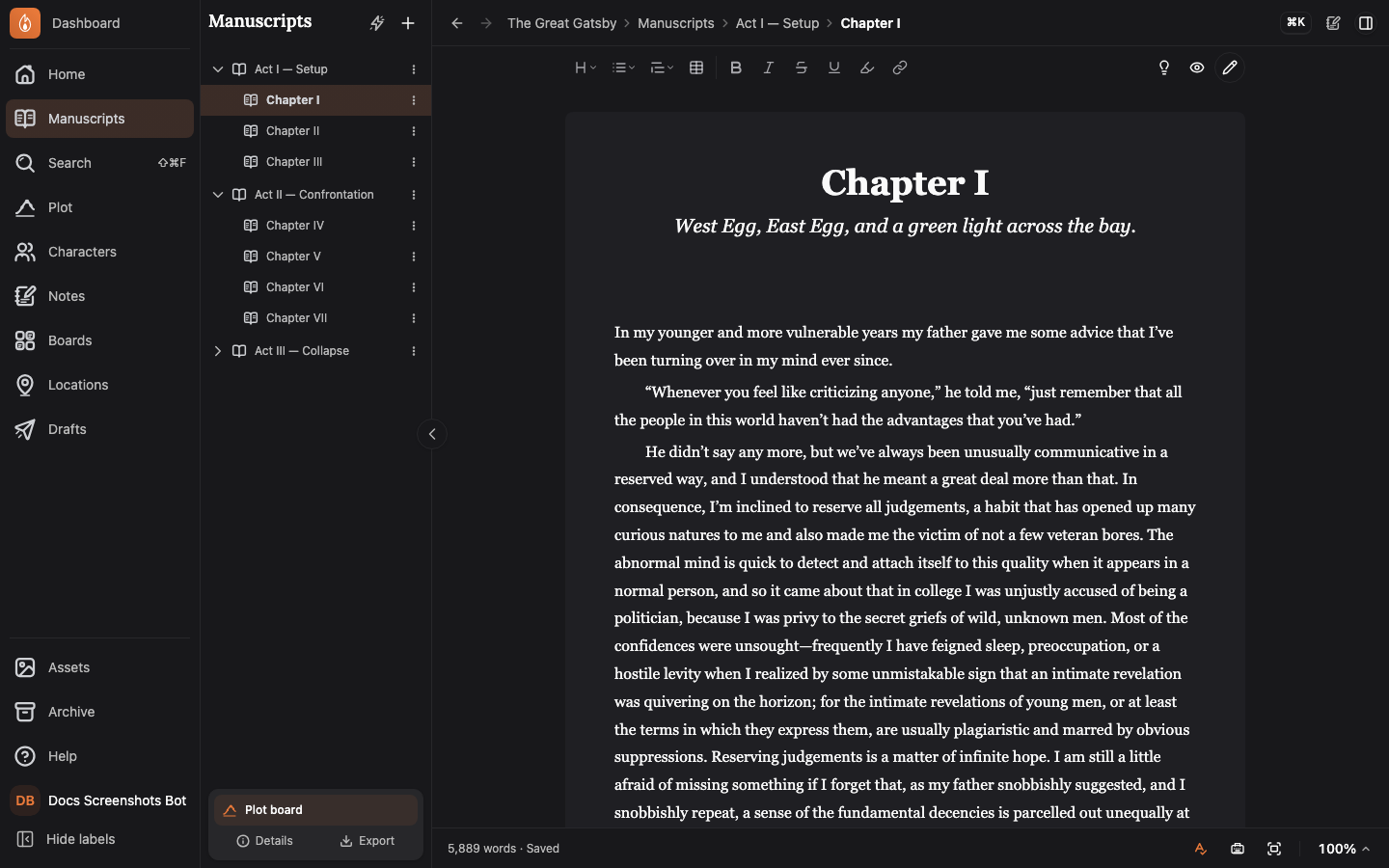
The rail down the left edge of the Studio shows each section’s icon with its name beside it. Dashboard, the logo at the top, takes you back to your dashboard. Below it, from top to bottom:
- Home: project home, with the project’s progress, recent chapters, and settings.
- Manuscripts: your chapters, sections, and scenes, in a tree you can expand, collapse, and reorder.
- Search: find every place a word or phrase appears in your manuscript, notes, characters, locations, and boards. It opens in the sidebar in place of the tree. Press ⇧⌘F (Ctrl+Shift+F on Windows) to open it from anywhere in the project.
- Plot: the Plot Board, with your book laid out part by part and your planned beats among the chapters. Switch it to Grid to see a chapter per row and a subplot per column.
- Characters: every character in the project.
- Notes: your research notebook. Press ⇧⌘↵ (Ctrl+Shift+Enter on Windows) to capture a note from anywhere in the project.
- Boards: open canvases where you pin notes, images, and pieces of your story, and arrange them freely.
- Locations: the places in your story. See Creating locations.
- Drafts: rounds of your manuscript sent to editors and beta readers, and the feedback that comes back.
- Assets: the project’s image library.
- Archive: anything you’ve archived. Restore items or delete them for good, one at a time or several at once. An archived chapter keeps its scenes. See Archiving, restoring, and deleting.
Hide the names beside the icons
Select Hide labels at the bottom of the rail to show icons only. Point at an icon to see its name. Select Show labels to bring the names back.
The choice covers your dashboard’s rail too, and is saved in this browser. On a small screen, the rail always shows icons only.
Project home
Project home is where you land when you open a project. Its Progress tab shows where you left off, your progress toward the word goal, and your recent chapters. Its Settings tab holds the title, synopsis, and word goal, with links to collaborators, snapshots, Automatic backups, and export.
When the manuscript is empty, the Progress tab shows a New chapter button instead. It creates a chapter with its first scene and opens it. Import a manuscript, below it, imports a file into Manuscripts.
Breadcrumbs and back/forward
The top bar shows a breadcrumb trail: your project, your section, and the path to what’s open. Select any part of the trail to go back up to it.
The back and forward arrows to the left of the trail work like your browser’s. They can take you out of the project if that’s where you came from.
The command menu
Press ⌘K (Ctrl+K on Windows) on any page, or select the ⌘K key in the top bar, to open the command menu. Type the name of a chapter, character, page, or setting to go there. Type a command, like New character, to run it. See Finding anything with the command menu.
The sync indicator
If your connection drops, the top bar shows “Offline”. Keep writing, and your changes save on your device. When the connection returns, it shows “Syncing” while your changes upload, then “Synced”, which fades away.
Related
Was this helpful?
Thanks for letting us know.